


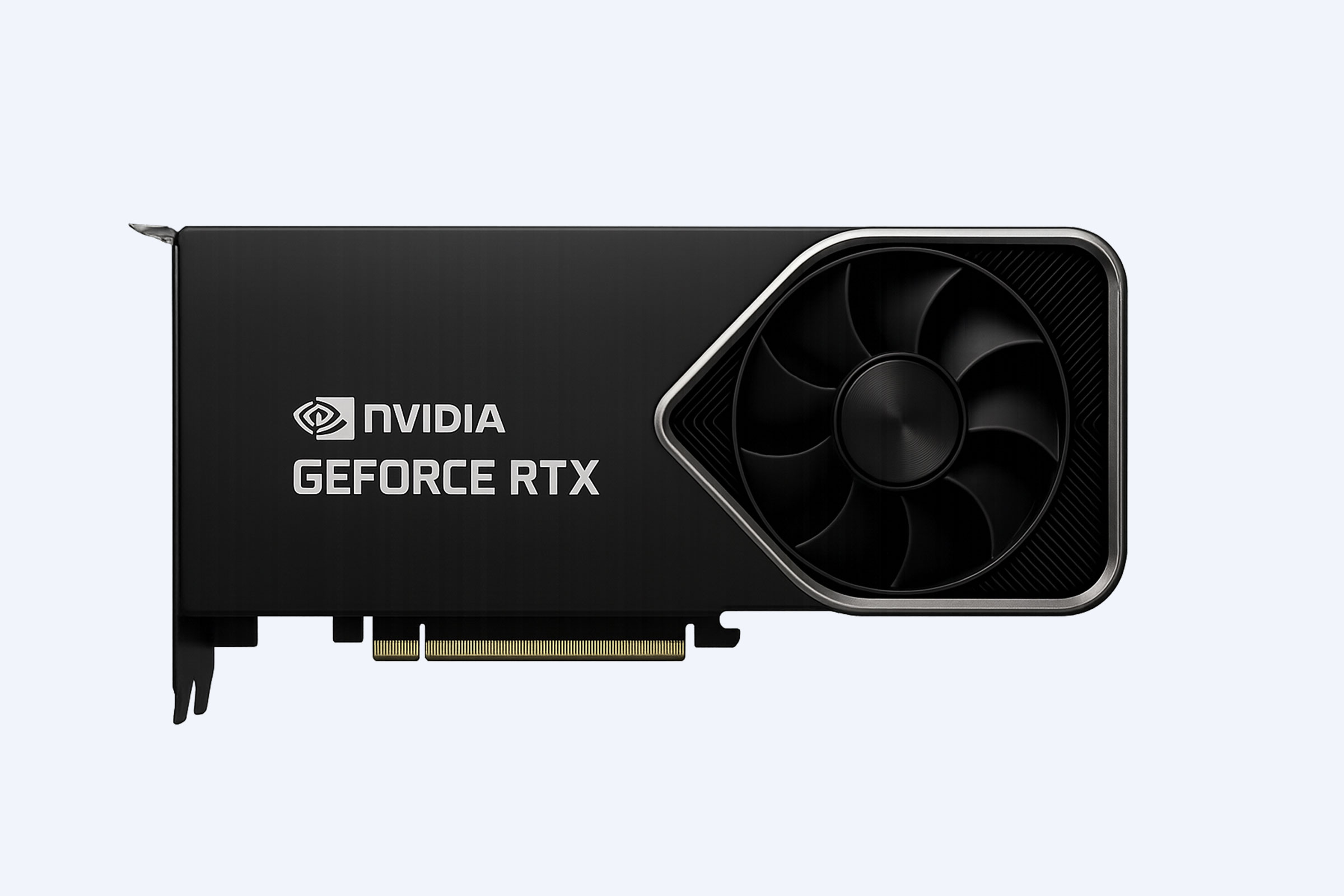


Multi-GPU rendering in OctaneRender and Redshift leverages multiple graphics cards to drastically accelerate 3D rendering times. For tasks like animation, architectural visualization, and VFX, this approach is essential. Adding a second or third GPU often delivers near-linear scaling, meaning render times can be cut in half or more, transforming workflows from overnight renders to interactive previews. The efficiency hinges on proper hardware configuration, software settings, and managing factors like VRAM and inter-GPU communication.
How to Choose the Best GPU for 3D Rendering?
How does multi-GPU scaling work in OctaneRender and Redshift?
Multi-GPU scaling splits the rendering workload across available GPUs, aiming for a linear performance increase. In an ideal scenario, two identical GPUs render a frame in half the time of one. Both Octane and Redshift are designed for this parallel processing, but real-world efficiency depends on scene complexity, data transfer overhead, and VRAM limitations. The master GPU distributes tasks and composites the final image.
At its core, multi-GPU rendering is about dividing the computational load. OctaneRender, being a pure GPU renderer, is exceptionally efficient at this. It uses a tile-based rendering system where the image is divided into sections, and each GPU works on its own tile simultaneously. Redshift follows a similar principle but with a more nuanced approach to managing data structures and shading networks across devices. But what happens when your scene doesn’t fit neatly into this parallel model? Practically speaking, scaling isn’t always perfectly linear. For example, a simple scene with a single object might see 95% scaling with two GPUs, while a complex architectural scene with billions of polygons and heavy textures might only achieve 80% due to increased overhead in data management and synchronization between cards. Pro Tip: For the best scaling in Octane, ensure “Out-of-Core” memory is enabled and optimized in preferences to handle scenes that exceed your total VRAM.
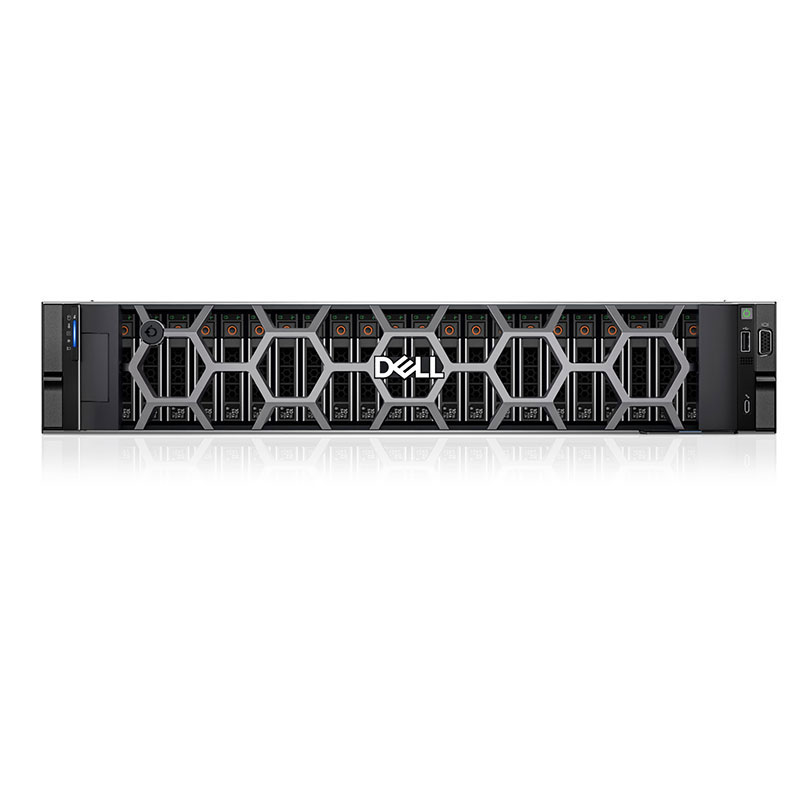
Beyond raw clock speeds, the interconnect between GPUs—typically PCIe lanes—becomes a critical bottleneck. A common pitfall we see at WECENT is users installing multiple high-end GPUs into a motherboard with insufficient PCIe lanes, starving the cards of data. For a 2023 animation studio client, WECENT configured a Dell PowerEdge R760 with dual RTX 6000 Ada GPUs on a full x16 PCIe Gen5 link each, achieving 92% scaling efficiency in Redshift, a tangible improvement over their previous Gen4 setup.
What are the key hardware requirements for an effective multi-GPU setup?
Building a stable multi-GPU render node requires careful hardware selection beyond just the GPUs. The power supply unit (PSU) must deliver ample, stable wattage, the motherboard PCIe lanes must provide sufficient bandwidth, and system cooling is paramount to prevent thermal throttling. A balanced configuration ensures each GPU can perform at its peak without bottlenecks.
You can’t just slap two power-hungry GPUs into any old case and expect magic. The foundation is a robust power supply with at least 30-40% headroom above the total TDP of all components. For instance, two NVIDIA RTX 4090s (450W each) demand a 1200W-1600W PSU from a reputable brand. But is power the only concern? Far from it. The motherboard’s chipset and CPU dictate the available PCIe lanes. Consumer platforms like Intel’s Core series often share a limited number of lanes, forcing multiple GPUs to run at reduced speeds (e.g., x8/x8 or even x4/x4), which can hamper data-heavy renders. For professional work, we at WECENT consistently recommend Threadripper Pro or Intel Xeon W-series platforms that offer ample PCIe lanes for full-bandwidth GPU operation.
| Component | Consumer-Grade Setup (e.g., Z790) | Workstation-Grade Setup (e.g., WRX90) |
|---|---|---|
| PCIe Lane Count | Limited (e.g., 20 from CPU) | High (e.g., 128 from CPU) |
| Multi-GPU Bandwidth | Often shared (x8/x8) | Dedicated full bandwidth (x16/x16/x16) |
| Memory Support & ECC | Limited, no ECC standard | High capacity, ECC for stability |
Furthermore, thermal management is non-negotiable. GPUs dumping 300+ watts of heat each will turn a standard ATX case into an oven. Beyond speed considerations, effective cooling ensures hardware longevity and consistent clock speeds. We solved this for a VFX studio by deploying an HPE ProLiant ML110 Gen11 tower configured with blower-style RTX A6000 GPUs and enhanced chassis fans, maintaining GPU temperatures below 75°C during 72-hour render marathons. Pro Tip: Always use a motherboard that spaces PCIe slots appropriately; crowded GPUs will thermally throttle each other, negating any multi-GPU performance gains.

How does VRAM work in a multi-GPU configuration?
In a multi-GPU setup, VRAM is typically not pooled into a single, larger memory pool. Instead, the scene data must be duplicated across the VRAM of each GPU. This means your effective scene size is limited by the VRAM of the smallest GPU in the system. Managing large textures and geometry requires smart optimization and sometimes out-of-core techniques.
This is one of the most common misconceptions: that four 24GB GPUs give you 96GB of usable VRAM. They don’t. Each GPU needs its own copy of the geometry, textures, and acceleration structures to work on its portion of the render. So, if your scene uses 18GB of VRAM, you’ll need every GPU in your system to have at least 18GB. This is why, in professional deployments, WECENT often guides clients toward GPUs with large, unified memory like the RTX 6000 Ada (48GB) or even data center cards like the A100 (40/80GB) for massive scenes. But what if your scene exceeds the VRAM of a single card? That’s where technologies like NVIDIA’s NVLink (on professional cards) and software’s out-of-core rendering come in. NVLink can create a unified memory address space between two GPUs, effectively pooling VRAM for supported applications. However, for most GeForce cards and beyond two GPUs, you’re reliant on the render engine’s ability to spill over to system RAM (out-of-core), which carries a significant performance penalty.
| Scenario | VRAM Model | Practical Implication |
|---|---|---|
| Identical GPUs (No NVLink) | Duplicated | Scene limit = Single GPU VRAM |
| Two GPUs with NVLink | Pooled (for supported apps) | Scene limit ≈ Combined VRAM |
| Mixed VRAM GPUs | Duplicated to smallest capacity | Larger GPU’s excess VRAM is wasted |
For example, an architectural firm rendering a detailed cityscape might hit 35GB of VRAM usage. Using two RTX 4090s (24GB each) would fail, as the scene exceeds a single card’s limit. A WECENT-configured solution with a single RTX 6000 Ada (48GB) or two NVLinked RTX A6000s (48GB each) would succeed. Pro Tip: In Octane, meticulously optimize your textures using the Live DB and the Texture Cache tool; converting 8K EXRs to optimized .ORBX files can cut VRAM usage by 50% or more, making multi-GPU rendering viable on more affordable hardware.
What is the real-world difference between scaling in Octane vs. Redshift?
While both engines support multi-GPU rendering, their architectural philosophies lead to different scaling behaviors. OctaneRender, as a unified engine, often demonstrates exceptionally high, near-linear scaling, especially in final renders. Redshift, being a biased, rasterization-based engine, also scales well but may show more variance depending on shader complexity and the use of features like ray-traced ambient occlusion or unified sampling.
Octane’s brute-force path tracing approach, where each pixel is calculated independently, is inherently more parallelizable. This makes it a darling for multi-GPU setups, as adding another GPU simply adds more paths to trace per second. However, this advantage can be offset by its heavy reliance on VRAM for textures and geometry. Redshift, on the other hand, uses a deferred rendering approach with clever optimizations like adaptive sampling and caching. This can sometimes introduce dependencies that limit perfect parallelism. For instance, a scene relying heavily on Redshift’s Irradiance Point Cloud (IPC) for global illumination requires building and accessing a shared cache, which can become a scaling bottleneck. So, which is better? It depends entirely on your pipeline and scene type. Practically speaking, for a product animation with clean lighting and many uniform samples, both will scale near-linearly. For a complex interior with many glossy reflections and transmissive materials, Octane might maintain better scaling where Redshift’s adaptive sampling could cause slight overhead.
From our experience at WECENT supporting animation studios, a dual-GPU Redshift setup in a Dell R750xa consistently delivers 85-90% scaling for final-frame production, while the same hardware under Octane might hit 90-95%. The key is profiling your own specific scenes. Beyond raw scaling percentages, consider workflow: Octane’s interactive viewport performance with multiple GPUs is often more responsive for look development, a tangible benefit during creative iteration.
Are consumer GeForce cards or professional Quadro/RTX cards better for multi-GPU?
The choice between consumer GeForce and professional RTX cards hinges on budget, scene scale, and required stability. GeForce cards (e.g., RTX 4090) offer incredible raw performance per dollar for rendering but lack VRAM pooling via NVLink and may have driver optimizations for gaming. Professional cards (e.g., RTX 6000 Ada) provide vast VRAM, NVLink support, certified drivers, and superior reliability for 24/7 render farm duty.
This is a classic cost-versus-enterprise-readiness debate. A stack of RTX 4090s will undoubtedly churn through frames at a blistering pace for scenes that fit within 24GB of VRAM. They are the kings of raw rasterization and ray-tracing performance. But would you trust a mission-critical, deadline-driven feature film render to them? Many large studios hesitate, and for good reason. Professional RTX cards like the A6000 or the new 6000 Ada are built with different priorities: ECC memory to prevent silent data corruption during long renders, robust cooling designed for sustained compute loads in server chassis, and drivers that are optimized and validated for professional DCC applications like Maya, 3ds Max, and Cinema 4D. Furthermore, their NVLink capability is a game-changer for large scenes, effectively turning two cards into a single, massive compute and memory resource in supported apps like Octane. For a recent healthcare visualization project, WECENT deployed an HPE ProLiant DL380 Gen11 with dual RTX A6000 GPUs linked via NVLink. This provided the 96GB of contiguous memory needed for gigantic 3D scan datasets, a feat impossible with GeForce cards. Pro Tip: If you must use GeForce cards in a multi-GPU setup, ensure your system has exceptional airflow and consider undervolting for better thermal performance and stability during continuous rendering.
What are the common pitfalls and how to optimize a multi-GPU render node?
Common pitfalls include thermal throttling from inadequate cooling, PCIe bandwidth bottlenecks, driver conflicts, and inefficient scene setup that doesn’t leverage parallelism. Optimization involves hardware tuning, software configuration, and ongoing scene asset management to keep data transfer overhead low and all GPUs fully utilized.
Setting up multiple GPUs is only half the battle; making them work harmoniously is the other. A frequent issue we encounter at WECENT is users not monitoring GPU utilization during renders. If one GPU is at 100% and the others are at 60%, you have a bottleneck. This could be a slow texture read from a storage drive, a complex shader graph evaluated only on the primary GPU, or a PCIe bottleneck. So, how do you diagnose this? Use tools like GPU-Z or the built-in performance monitors in Octane and Redshift to track per-GPU load, memory usage, and temperature. Beyond monitoring, practical optimization starts with your scene. Use instancing for repetitive objects instead of copies, bake simulations where possible, and use optimized texture formats. In the OS and BIOS, ensure the PCIe link speed is set to its maximum (Gen4/Gen5), disable power-saving features like ASPM for the PCIe slots, and use a clean, studio-ready driver (like NVIDIA’s Studio Driver or enterprise-certified versions).
Finally, consider the render task itself. For animation, using a distributed rendering system like Octane’s Render Nodes or Redshift’s Satellite Rendering across multiple physical machines can often yield better overall throughput and reliability than cramming all GPUs into one box, as it isolates hardware failures. WECENT’s expertise lies in designing these holistic systems, whether it’s a single powerhouse workstation or a small render farm, ensuring each component from PSU to network switch is chosen for stability and performance in a professional content creation environment.
WECENT Expert Insight
FAQs
Not always. While the goal is linear scaling, real-world factors like scene complexity, PCIe bandwidth, VRAM duplication, and software overhead mean you might see a 70-90% performance increase. Simple scenes scale better than highly complex ones.
Can I mix an NVIDIA GPU with an AMD GPU for rendering?
No, OctaneRender and Redshift do not support mixing GPU architectures (NVIDIA CUDA with AMD HIP) within the same render session. You must use all NVIDIA or all AMD GPUs for a single machine’s render workload.
Is NVLink necessary for multi-GPU rendering?
For most final-frame rendering, NVLink is not strictly necessary for performance scaling. Its primary benefit is VRAM pooling for extremely large scenes on supported professional cards (e.g., RTX A6000, RTX 6000 Ada). It has minimal impact on raw compute speed for scenes that fit in a single card’s memory.
How important is the CPU in a multi-GPU rendering system?
The CPU’s role is crucial but different. It doesn’t directly render pixels but manages the scene loading, data distribution to GPUs, and system operations. A CPU with sufficient PCIe lanes and fast single-core performance (for viewport interaction) is essential to avoid bottlenecking the GPUs.