


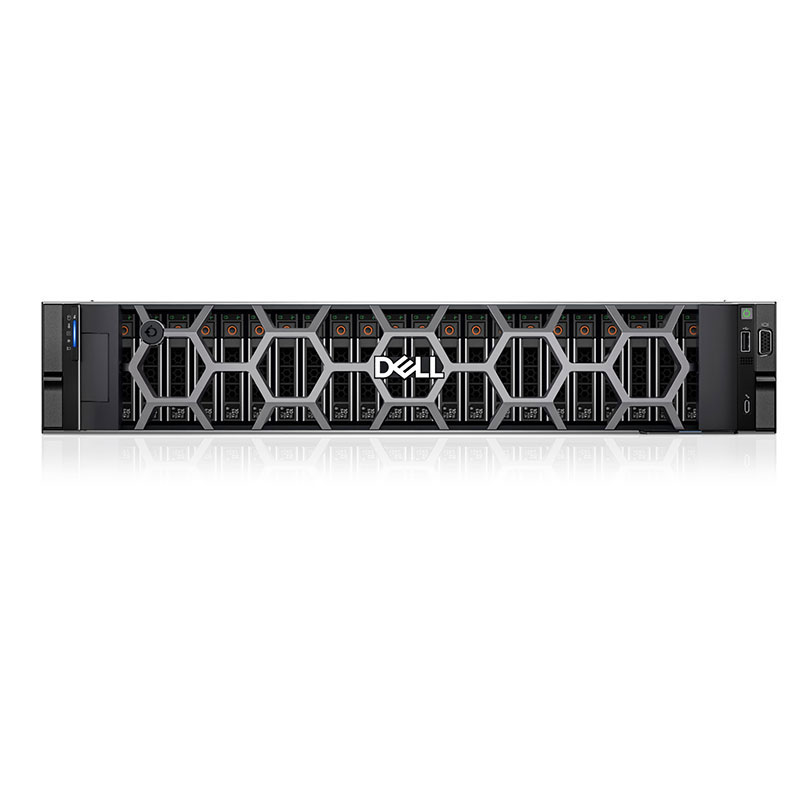
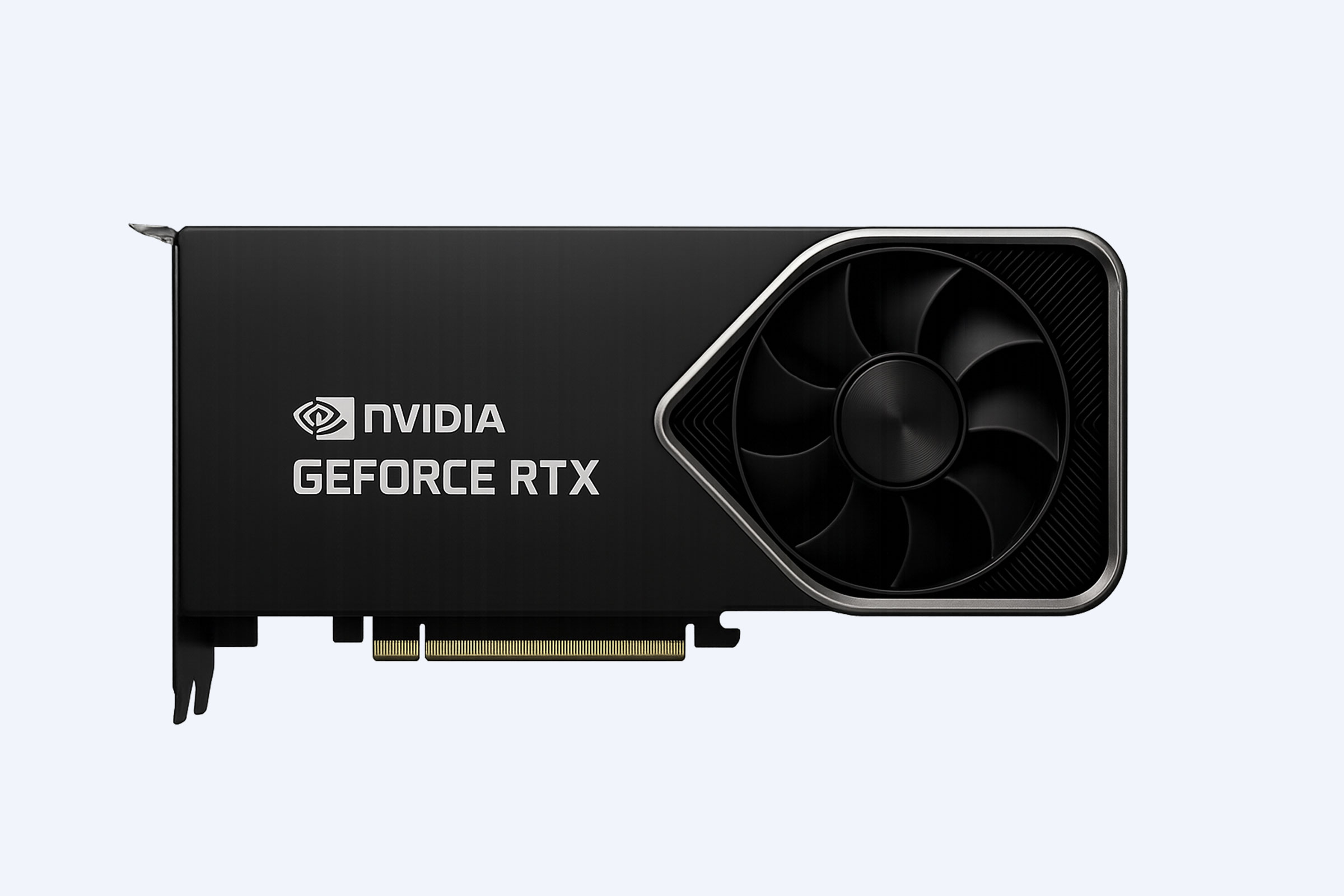


For creative professionals and engineers, the choice between a mobile workstation and a desktop GPU workstation defines a fundamental trade-off between portability and raw performance. While mobile RTX and professional laptop GPUs offer impressive on-the-go capabilities, they are fundamentally constrained by thermal and power limits, resulting in a significant and often unavoidable performance gap compared to their desktop counterparts. Managing expectations means understanding that a mobile workstation is a tool for iteration and remote work, while the desktop rig remains the undisputed king for final renders, complex simulations, and heavy computational loads. True studio-grade throughput still lives in a tower or server chassis, a reality WECENT observes daily in enterprise deployments.
How to Choose the Best GPU for 3D Rendering?
What is the core technical reason for the performance gap?
The core technical divide stems from Thermal Design Power (TDP) constraints and silicon binning. A desktop RTX 4090 can consume 450W, allowing for higher clock speeds and more CUDA cores, while its mobile variant is limited to around 150W. This power ceiling forces manufacturers to use lower-binned chips with disabled cores and reduced voltages, directly capping performance. It’s not just a slower version; it’s a fundamentally different product built for a different physical environment.
When we talk about performance, we’re really talking about power and heat. A desktop chassis can house massive coolers and multiple fans to dissipate 400+ watts from a single GPU. A laptop’s thin profile simply cannot manage that thermal load. This is why the mobile RTX 4090, despite sharing a name, often performs closer to a desktop RTX 4070 Ti. The silicon itself is different—manufacturers take the GPUs that couldn’t hit the high performance or efficiency targets for the desktop card and configure them for a mobile power envelope. But what does this mean for your workflow? Practically speaking, a complex Blender render or a GPU-accelerated simulation that takes 30 minutes on a high-end desktop might take over an hour on the top-tier mobile equivalent. This gap isn’t an engineering failure; it’s the price of portability. For example, in a recent WECENT deployment for an architectural firm, designers used Dell Precision mobile workstations for client-site presentations and light edits, but all final 4K renders were queued to a desktop tower with dual RTX A6000 GPUs back at the office.
How do mobile workstation GPUs (RTX Ada vs. RTX Professional) differ?
Mobile workstations offer both consumer GeForce RTX and professional NVIDIA RTX Ada GPUs. The key differences lie in drivers, validation, and features like Error Correcting Code (ECC) memory. While they share silicon, professional drivers are optimized and certified for stability in mission-critical CAD, CAM, and scientific applications, reducing the risk of crashes or graphical glitches during a 48-hour simulation.
At first glance, a mobile RTX 4090 and an RTX 5000 Ada laptop GPU might seem similar, but their intended paths diverge significantly. The professional RTX Ada line uses drivers that are meticulously tested and certified by both NVIDIA and software vendors like Autodesk, Dassault Systèmes, and Siemens. This ensures absolute stability in applications like SolidWorks or ANSYS, where a driver timeout could mean losing hours of work. Beyond stability, professional GPUs often unlock features crucial for enterprise. ECC memory, for instance, proactively detects and corrects data corruption in GPU memory—a non-negotiable for scientific computing or financial modeling. So, why would you choose one over the other? If your primary work involves real-time rendering, game development, or Adobe Creative Suite, a high-end mobile GeForce RTX offers fantastic performance-per-dollar. However, if your livelihood depends on running certified, complex engineering simulations or creating massive architectural models, the professional GPU’s validated drivers and ECC memory provide essential insurance. In our experience at WECENT, we’ve seen engineering firms standardize on HP ZBook Fury laptops with RTX 4000 Ada GPUs precisely for this guaranteed stability when engineers are working off-site.
| Feature | Mobile GeForce RTX (e.g., 4090 Laptop) | Mobile Professional RTX Ada (e.g., RTX 5000 Ada) |
|---|---|---|
| Primary Driver Focus | Performance & Features for Gaming/Creative Apps | Maximum Stability & Certification for Pro ISV Apps |
| Memory Type | Standard GDDR6/GDDR6X | Often includes ECC-Capable GDDR6 |
| Enterprise Support & Warranty | Standard Consumer Channel | Professional Support Plans, Longer Warranties |
What are realistic expectations for rendering “on the go”?
Realistic expectations mean viewing mobile rendering as a tool for iteration and preview, not final output. You can efficiently adjust lighting, materials, and camera angles on a laptop, but for the final frame or animation sequence, leveraging a desktop render farm or cloud services is often necessary. The goal is productivity during travel or client meetings, not replacing your studio’s render power.
Let’s be clear: you *can* render a final, high-resolution image on a powerful mobile workstation. The question is whether you *should* in terms of time and hardware strain. Mobile workstations excel at providing immediate feedback. You can sculpt a 3D model, tweak a texture map, or see a rough preview of a global illumination scene in near real-time. This is transformative for productivity when you’re not at your desk. However, when you hit the final “render” button for a 4K image with full ray tracing, the mobile GPU will be pushed to its thermal limits, fans will scream, and the process will take significantly longer. So, what’s the smart workflow? Many professionals use their mobile workstation to set up the scene and then offload the final render to a more powerful machine. This could be a desktop in your studio accessed remotely, a dedicated render node, or a cloud rendering service. For instance, an animator could block out scenes and do lighting passes on a Lenovo ThinkPad P16 with an RTX 4000 Ada GPU during a flight, then submit the final sequence to a cloud farm like GarageFarm or a local Dell Precision 7865 tower upon landing. This hybrid approach maximizes the strengths of both portable and fixed hardware.

When does a desktop GPU workstation become non-negotiable?
A desktop workstation is non-negotiable for multi-GPU configurations, handling extremely large datasets (exceeding mobile VRAM), and sustained, heavy computational loads like AI training, complex fluid dynamics, or 8K video rendering. The expandability, superior cooling, and ability to use full-power, often larger desktop GPU boards create a ceiling of performance that mobile platforms cannot physically reach.
There are simply workloads that demand a desktop’s inherent advantages. Consider a data scientist training a large language model or a VFX studio rendering 8K frames for a feature film. These tasks require not just one powerful GPU, but often two, three, or four working in parallel (NVLink/SLI). Try fitting that into a laptop chassis! Beyond multi-GPU, the VRAM capacity is a major differentiator. While mobile GPUs top out at 16GB (with a few professional models at 32GB), desktop and server GPUs like the NVIDIA RTX 6000 Ada offer 48GB, and the H100 offers 80GB or more. When you’re working with massive photogrammetry scans, complex simulation meshes, or enormous AI datasets, running out of VRAM means the job can’t even start. Furthermore, desktops allow for unparalleled customization and future-proofing. Need more storage for asset libraries? Add more NVMe drives. Need a 10GbE network card for fast data transfer? There’s a PCIe slot for that. At WECENT, we recently configured an HPE ProLiant DL380 Gen11 server with four RTX A6000 GPUs for a healthcare AI research group; this density and sustained performance is impossible in a mobile form factor.
| Scenario | Mobile Workstation Viability | Desktop Workstation Necessity |
|---|---|---|
| AI Model Training (Large Dataset) | Low – Limited VRAM, thermal throttling on long jobs | High – Multi-GPU, high VRAM models, sustained cooling |
| Architectural Walkthrough (Real-Time) | High – Excellent for client presentations and edits | Medium – Needed for ultra-high-poly model creation |
| 8K Video Editing & Color Grading | Medium – Can handle proxy editing | High – Required for real-time 8K playback & effects |
How does PCIe bandwidth affect mobile vs. desktop performance?
PCI Express (PCIe) lane allocation is a major but hidden bottleneck in mobile platforms. Laptop GPUs are often connected via a limited number of PCIe lanes (e.g., x8 instead of x16) and may use older PCIe generations. This restricts the data flow between the GPU and CPU/memory, impacting performance in data-heavy tasks like AI inference or loading massive textures, a gap that becomes stark compared to a desktop’s full x16 PCIe 5.0 link.
It’s easy to focus on core count and clock speed, but the data highway matters immensely. A desktop GPU typically enjoys a full x16 PCIe 5.0 connection to the CPU, offering a theoretical bandwidth of ~128 GB/s. In contrast, a mobile GPU might be limited to an x8 link over PCIe 4.0, cutting that bandwidth by 75%. But what does this mean in practice? For many gaming and light creative tasks, the difference is minimal. However, for professional workloads that constantly shuffle massive amounts of data—think running AI inference on large batches of high-resolution images, simulating particle systems with millions of elements, or real-time rendering of a scene that doesn’t fit entirely in VRAM—the restricted PCIe bandwidth becomes a tangible choke point. The GPU ends up waiting for data, causing stalls and reducing overall utilization. This is a key reason why, even with similar-looking specs, a mobile workstation can feel sluggish on certain enterprise-scale tasks. When WECENT consultants design a rendering or AI server, maximizing PCIe lane allocation and using the latest generation (Gen5) is a primary consideration to ensure no part of the system is starving the powerful GPUs.
What is the total cost of ownership (TCO) perspective?
The Total Cost of Ownership (TCO) for a mobile workstation includes a premium for miniaturization and often shorter upgrade cycles. Desktops offer better long-term value through easier, cheaper upgrades (just swap the GPU), superior repairability, and longer lifespans. For a studio, investing in a powerful desktop render node and mid-range laptops for mobility often provides the best balance of performance and flexibility.
Looking beyond the initial purchase price reveals a strategic financial picture. A top-tier mobile workstation can cost as much as a high-end desktop, but its upgrade path is essentially non-existent—you replace the entire machine. A desktop, however, allows you to upgrade the GPU, add more RAM, or increase storage every few years at a fraction of the cost of a new laptop. This extends its useful life significantly. Furthermore, thermals are a longevity issue. A laptop GPU consistently running at 85°C+ under load will experience more thermal stress over time than a desktop GPU kept at 65°C with robust cooling. From an enterprise IT perspective, which WECENT manages for many clients, desktops are also easier and cheaper to service. A failed GPU in a desktop is a 10-minute swap; in a laptop, it often requires a full motherboard replacement. Therefore, the most cost-effective strategy for many businesses is a “hub and spoke” model: invest in one or two extremely powerful, upgradeable desktop workstations or servers as the central “render hub,” and equip staff with capable but not top-tier mobile workstations for on-the-go work. This balances performance, cost, and flexibility perfectly.
WECENT Expert Insight
FAQs
No, you cannot. Despite sharing a name (e.g., “RTX 4090”), mobile GPUs are fundamentally different silicon with lower power limits, reduced core counts, and slower clock speeds. Performance typically aligns with a desktop GPU one or two tiers below.
Is a mobile workstation GPU (RTX Ada) worth the extra cost over a consumer GeForce RTX laptop?
It depends on your software and tolerance for risk. If you use certified professional applications like SolidWorks, CATIA, or ANSYS, the validated drivers and ECC memory of an RTX Ada GPU are worth the premium for stability. For general 3D work, video editing, or game dev, a high-end GeForce RTX may offer better performance per dollar.
How can I effectively use a mobile workstation as part of a larger studio workflow?
Use it for scene setup, asset creation, and client previews on location. For final rendering, leverage remote desktop software to access your more powerful desktop workstation, set up a network render queue, or use cloud rendering services to offload the heavy computational lift.
Does WECENT provide solutions that bridge mobile and desktop GPU workflows?
Absolutely. As an authorized partner for Dell and HP, WECENT specializes in designing integrated workflows. We can supply mobile workstations like the HP ZBook Fury and pair them with desktop towers or GPU servers from our inventory, providing a single point of contact for hardware, support, and workflow consultation to ensure seamless operation between on-the-go and in-studio systems.