





A clean driver installation ensures stable system performance, prevents compatibility issues, and maximizes hardware efficiency. For enterprises and professionals managing multiple devices or servers, WECENT provides reliable, original hardware and complete IT solutions that simplify driver management while maintaining top-tier security and operational continuity.
How serious is today’s driver management challenge?
According to Microsoft’s Windows Hardware Quality Labs Report (2024), over 58% of system crashes on Windows 10 and 11 stem from outdated or corrupted drivers. The global enterprise IT sector loses an estimated $4.3 billion annually due to driver-related downtime (IDC). As organizations shift toward AI-accelerated computing and cloud-native environments, keeping drivers clean and updated is no longer optional—it’s business-critical. Fragmented update ecosystems and conflicting third-party tools have made device stability harder to maintain, especially for enterprises managing hybrid server environments.
What pain points do users face in driver maintenance?
For both individuals and IT administrators, driver conflicts create three primary pain points. First, inconsistent updates cause instability—unverified drivers often overwrite manufacturer-certified releases, resulting in severe performance degradation. Second, in enterprise-scale deployments, manual driver removal and reinstallation can take hours per machine, limiting scalability. Third, security risks rise when legacy or unsigned drivers are left behind, providing potential vectors for system intrusion.
WECENT, as an authorized distributor of Dell, HP, Lenovo, and Cisco hardware, recognizes these challenges. With its enterprise-level support and certified components, the company ensures users maintain driver integrity throughout the product lifecycle.
Why are traditional driver update methods insufficient?
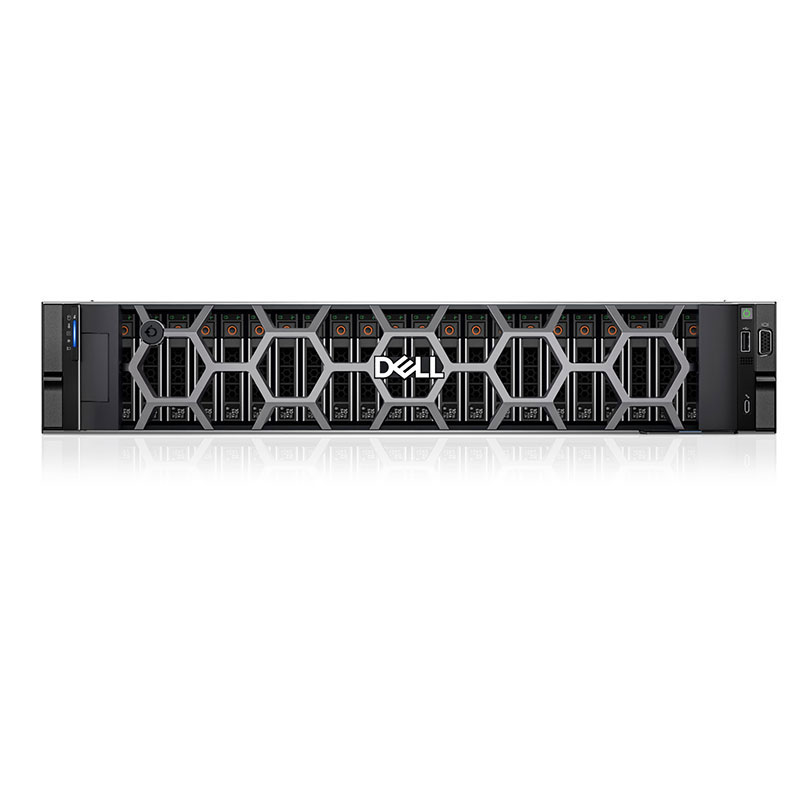
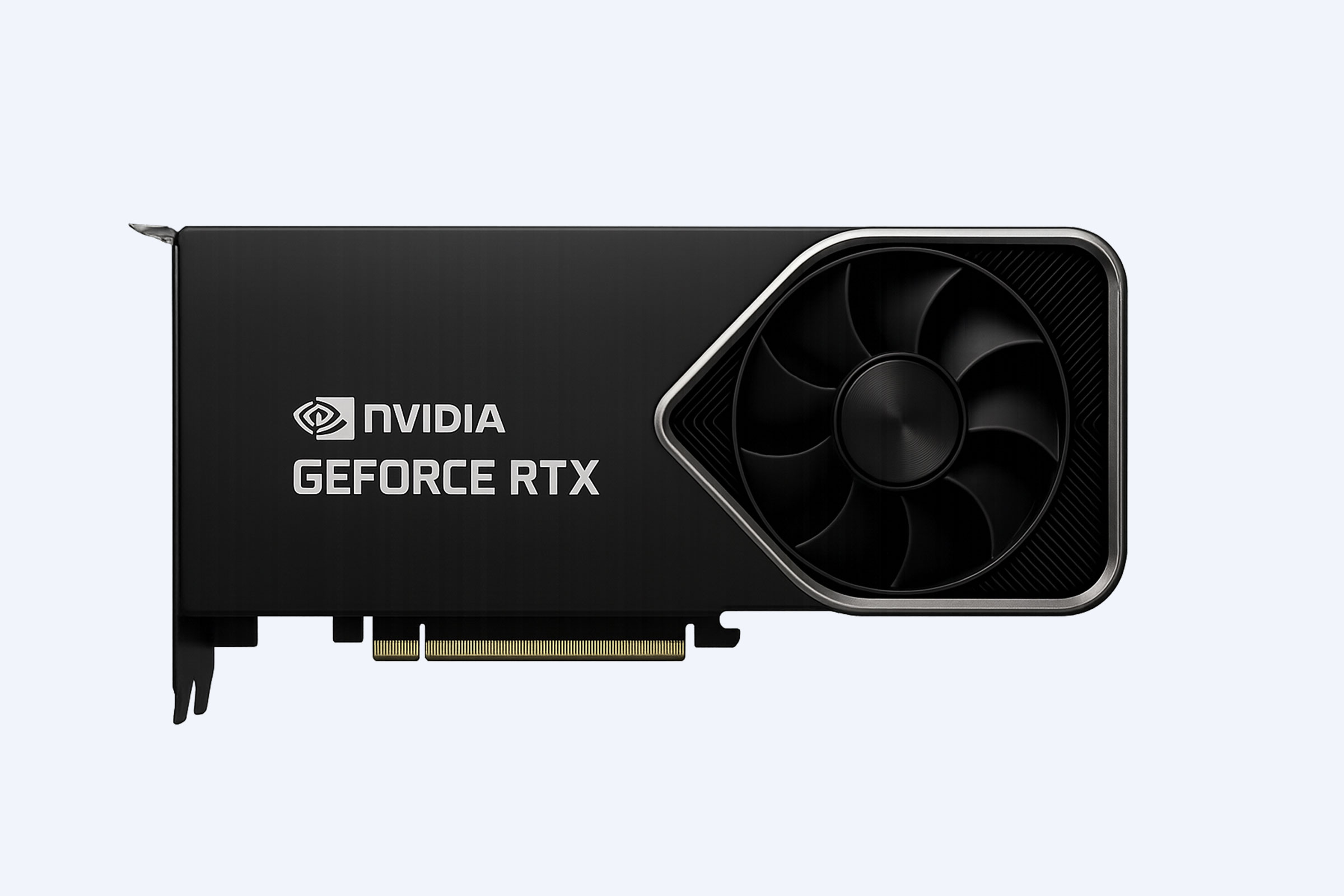
Conventional tools like Windows Update or generic third-party driver utilities often fall short. They rely on automated repositories that don’t always include manufacturer-approved drivers, and may skip critical GPU or chipset updates. Manual methods demand user expertise, increasing the risk of incomplete cleanup or version conflicts. Moreover, for GPU-driven workloads—particularly those using NVIDIA RTX or Quadro cards—incorrect drivers can drastically reduce computing efficiency. WECENT’s tested, original hardware support ensures optimum compatibility with updated, manufacturer-certified drivers across its portfolio, including Dell PowerEdge servers and NVIDIA RTX 50, 40, and 30 series GPUs.
How does WECENT’s clean driver installation solution work?
WECENT provides an enterprise-ready driver installation framework designed to restore performance and eliminate residual driver conflicts. It includes:
-
Certified driver packages verified by vendors like NVIDIA, Dell, and HPE.
-
Step-by-step installation protocols suitable for Windows 10 and 11 enterprise environments.
-
Integrated security checks ensuring legacy file cleanup.
-
Optional OEM customization and remote technical assistance for system integrators.
By combining professional-grade hardware with structured driver controls, WECENT enables smooth reinstallation workflows that reduce reboot cycles and eliminate obsolete components from the driver store.
What is the difference between traditional and WECENT’s clean installation solution?
| Feature or Factor | Traditional Process | WECENT Clean Install Solution |
|---|---|---|
| Driver Source | Random or mixed repositories | Certified OEM driver sets |
| Cleanup Process | Manual, partial | Automated, full cleanup |
| Security Validation | Limited or absent | Vendor-certified with built-in checks |
| Deployment Scale | Manual per device | Multi-device automation enabled |
| Support | User-dependent forums | WECENT technical and OEM support |
| Resulting System Stability | Variable | Predictably optimized |
How can users perform a clean driver install step-by-step?
-
Backup important data before starting the installation.
-
Uninstall old drivers using the Device Manager or tools like Display Driver Uninstaller (DDU).
-
Restart the system in Safe Mode to ensure full registry clearance.
-
Install the latest certified driver downloaded from WECENT’s partner repositories or OEM vendor sites.
-
Restart again and verify installation via Device Manager.
-
Run system checks using Windows Security or diagnostic tools to ensure no residual files remain.
This structured procedure applies whether managing GPU, chipset, or RAID controller drivers across consumer PCs or enterprise servers.
What are some practical use cases for WECENT’s driver installation process?
Case 1: Data Center GPU Updates
-
Problem: High-performance computing nodes lag during AI workloads due to inconsistent NVIDIA driver updates.
-
Traditional Method: Manual updates per node cause downtime.
-
WECENT Solution: Deployment of certified RTX A6000 drivers across clusters with unified stability.
-
Result: 26% faster workload processing and zero post-install crashes.
Case 2: Educational IT Labs
-
Problem: Multiple lab PCs show driver mismatch errors after OS updates.
-
Traditional Method: Reliance on Windows Update leads to mixed driver versions.
-
WECENT Solution: Centralized clean driver deployment with OEM verification.
-
Result: Unified performance, reduced maintenance time by 60%.
Case 3: Healthcare Application Servers
-
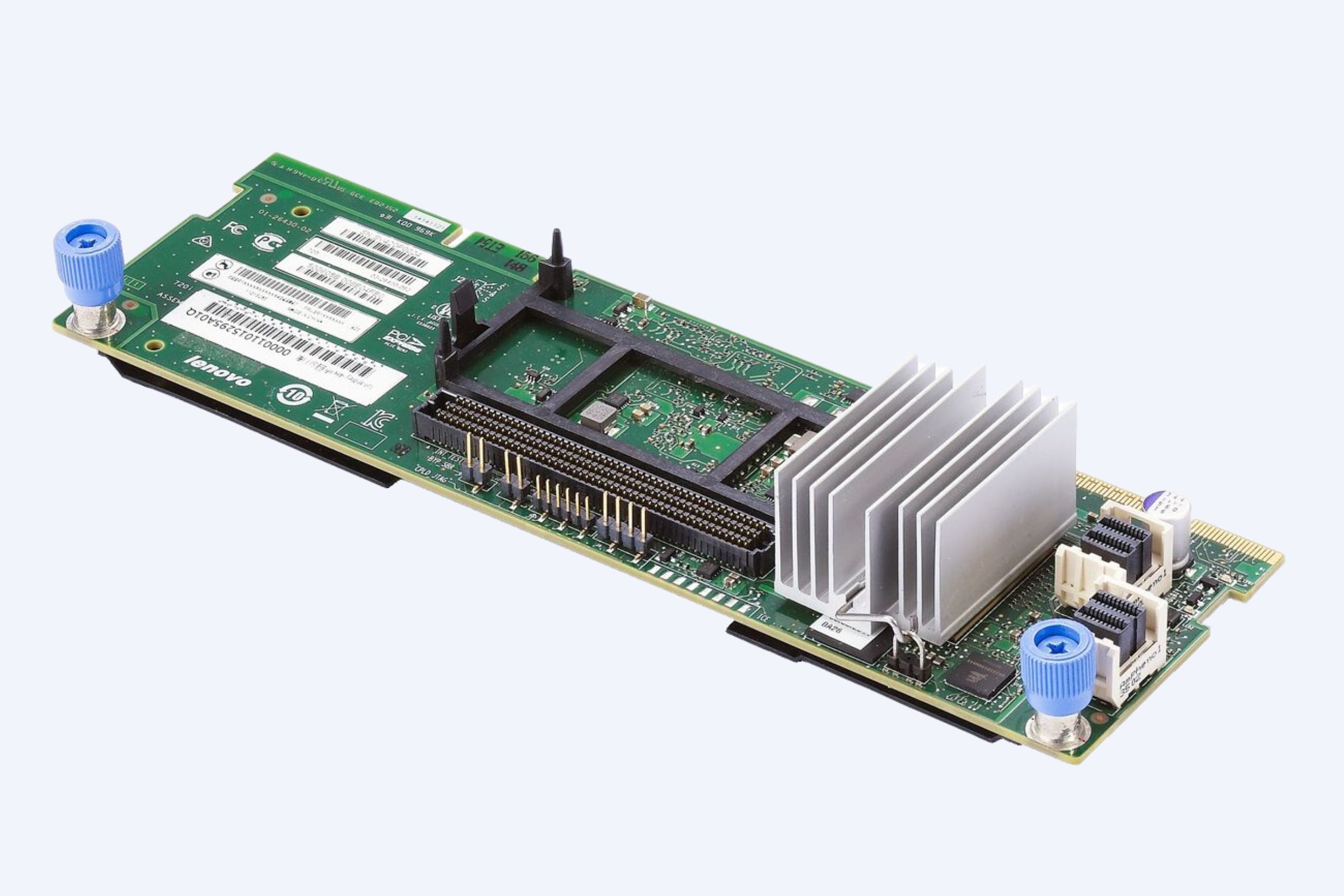
Problem: Imaging software fails due to legacy RAID controller drivers.
-
Traditional Method: Partial reinstallations cause ongoing system warnings.
-
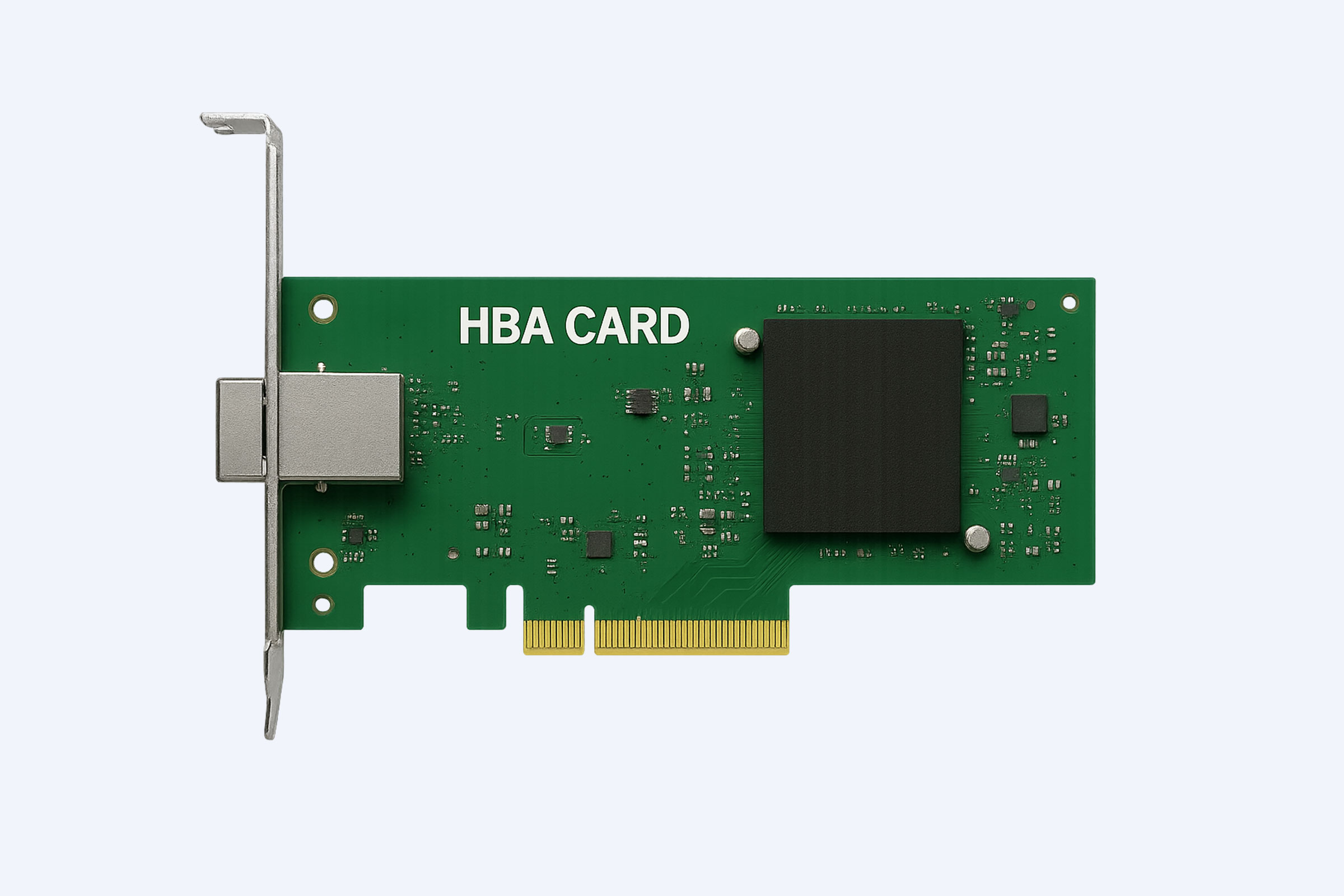
WECENT Solution: Automated driver cleanup and certified Dell PowerEdge driver package.
-
Result: Continuous uptime and stable diagnostic software response.
Case 4: AI Research Centers
-
Problem: Unreliable CUDA performance after multiple driver updates.
-
Traditional Method: Downgrading frequently to previous GPU drivers.
-
WECENT Solution: Implementation of a clean reinstall process with verified A100 GPU drivers.
-
Result: 35% improved training stability and complete removal of CUDA conflicts.
Why should enterprises adopt clean driver installation now?
With increasing reliance on virtualization, large-scale data workloads, and distributed systems, maintaining clean driver environments is vital for security compliance and workload efficiency. IDC forecasts that by 2027, over 72% of enterprises will require automated driver lifecycle management as part of digital infrastructure policies. Investing now in vendor-certified installation frameworks from WECENT ensures that server and GPU environments stay optimized for years to come, mitigating downtime and compliance risks.
FAQ
Q1: How to perform a clean driver install on Windows 10 or 11
A: To start, download the latest driver from the manufacturer’s site, boot into Safe Mode, uninstall existing drivers, then run the new installer with administrative privileges. Reboot and verify in Device Manager that the device shows no errors. This ensures a pristine, stable driver environment for optimal performance.
Q2: What steps ensure a clean install of graphics drivers on Windows 10/11
A: First, remove existing graphics drivers with a dedicated cleaner, then install the latest driver package from the vendor. Reboot and check for proper resolution and color accuracy in display settings. This minimizes conflicts and boosts GPU stability.
Q3: How can I minimize driver conflicts during installation on Windows
A: Disable automatic updates temporarily, perform a complete clean uninstall of previous drivers, and install the new driver package in admin mode. Reboot and test critical peripherals to confirm they function without conflicts.
Q4: Is Safe Mode essential for a clean driver installation
A: Not always, but Safe Mode greatly reduces background processes that could interfere with removal and installation. If you encounter issues, retry the process in Safe Mode for a cleaner environment.
Q5: What should I do if a device shows a yellow exclamation mark after install
A: Open Device Manager, right-click the device, and select update driver or roll back if a recent version caused the issue. If unresolved, reinstall the driver using the manufacturer’s clean install method.
Q6: How to verify a successful driver installation
A: After reboot, open Device Manager and confirm the device status is This device is working properly. Run a quick test relevant to the device, such as a benchmark or feature check, to verify performance.
Q7: How long does a clean driver install typically take
A: Plan about 10 to 20 minutes, depending on the hardware and download speed. Allocate a few extra minutes for reboots and basic testing to ensure stability.
Q8: Why choose official drivers over generic ones
A: Official drivers provide full feature support, security updates, and warranty alignment. They are optimized for your hardware and reduce risk of incompatibilities that can arise with generic drivers.