


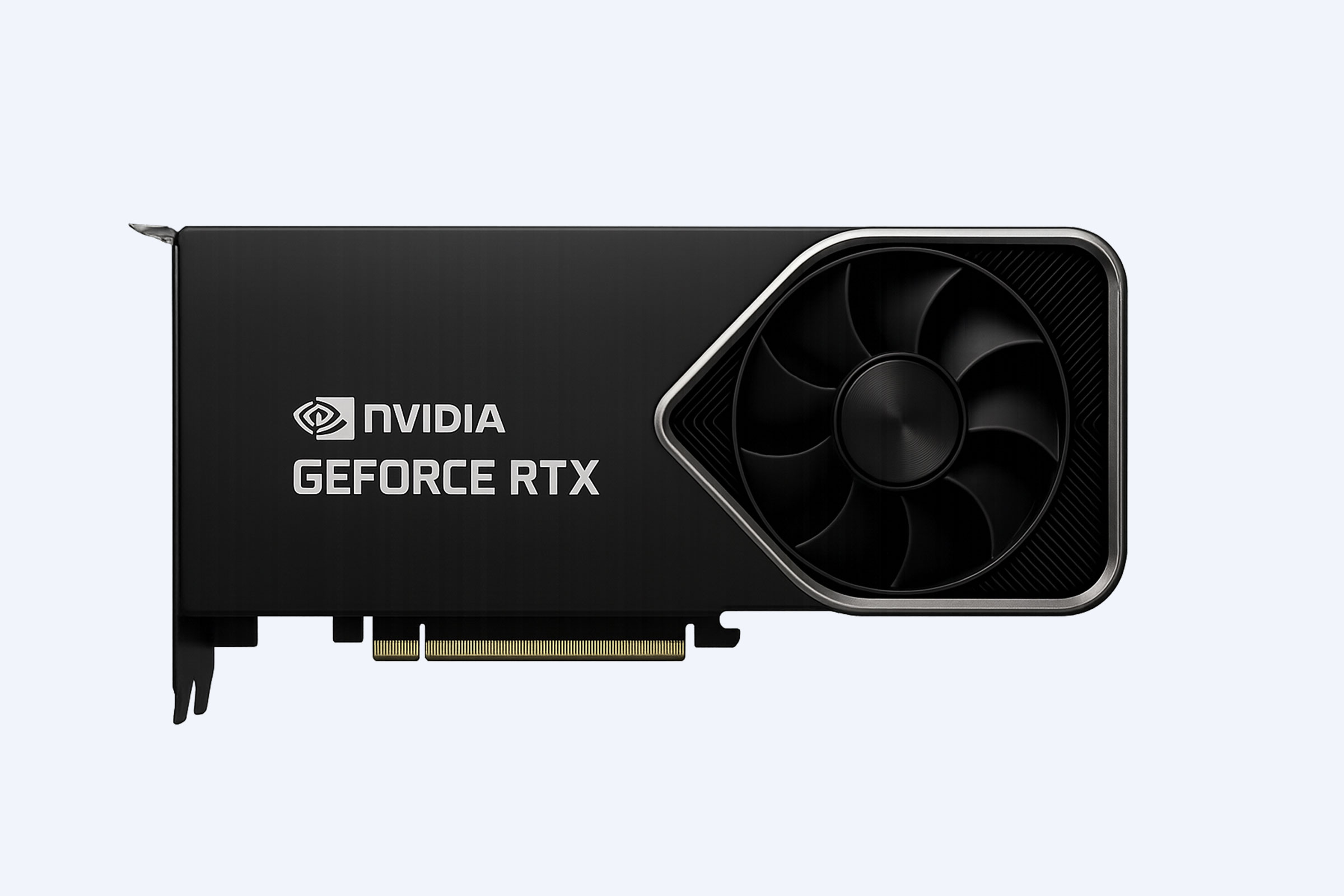


Identifying your NVIDIA GPU in Windows is simple using built-in tools like Device Manager or Task Manager, which quickly display your graphics card model. For more detailed specifications such as memory, driver version, and architecture, tools like NVIDIA Control Panel or third-party software provide deeper insights, helping ensure compatibility, performance optimization, and accurate upgrade planning.(Edited on June 9, 2026)
How Can You Identify Your NVIDIA GPU Using Device Manager?
Device Manager is the fastest and most accessible way to identify your NVIDIA GPU without installing additional software.
To check your GPU:
-
Press Windows + X and select Device Manager
-
Expand the Display adapters section
-
Locate your NVIDIA GPU model (e.g., NVIDIA GeForce RTX 4080)
This method works even if drivers are outdated or partially installed, making it highly reliable for troubleshooting. IT administrators and enterprises often use this approach for quick system audits across multiple machines.
What Information Does NVIDIA Control Panel Provide About Your GPU?
The NVIDIA Control Panel delivers detailed and accurate GPU specifications when official drivers are installed.
Steps to access:
-
Right-click on your desktop and open NVIDIA Control Panel
-
Click System Information at the bottom-left corner
You can view:
-
GPU model and architecture
-
VRAM (video memory) capacity
-
Driver version
-
Display configuration details
This method is especially useful for professionals using high-performance GPUs supplied by WECENT, ensuring precise hardware verification for demanding workloads.
Why Is It Important to Know Your Exact NVIDIA GPU Model?
Knowing your exact GPU model is critical for system performance and compatibility.
Key reasons include:
-
Installing the correct drivers for stability and efficiency
-
Ensuring software and games run optimally
-
Planning hardware upgrades without bottlenecks
For example, an NVIDIA RTX 4090 significantly outperforms an RTX 3060 in AI processing and rendering tasks, impacting both productivity and power requirements. Businesses working with WECENT often verify GPU specifications before deployment to avoid costly compatibility issues.
Which Tools Provide Detailed GPU Specifications Beyond Windows?
Third-party tools offer advanced insights into GPU performance and hardware details beyond what Windows provides.
Popular tools include:
-
GPU-Z for detailed hardware-level specifications
-
HWiNFO64 for real-time monitoring and diagnostics
-
Speccy for simplified system summaries
Key GPU parameters explained:
These tools are widely used in both consumer and enterprise environments, including systems deployed through WECENT.
Where Can You Find GPU Details in Windows Settings and Task Manager?
Windows includes built-in utilities for quick GPU identification and monitoring.
In Settings:
-
Navigate to System > Display > Advanced display settings
-
Click Display adapter properties to view GPU details
In Task Manager:
-
Press Ctrl + Shift + Esc
-
Go to the Performance tab and select GPU
Task Manager provides real-time data such as usage, memory consumption, and temperature, making it useful for diagnosing performance issues.
What Should You Do If Your NVIDIA GPU Is Not Detected?
If your GPU is not visible in Windows, several steps can help resolve the issue:
-
Scan for hardware changes in Device Manager
-
Reinstall drivers using NVIDIA GeForce Experience
-
Ensure your monitor is connected to the GPU port, not the motherboard
-
Check BIOS settings to confirm GPU detection
If problems persist, WECENT offers professional support and hardware validation services for enterprise and workstation environments.
Can You Identify Your NVIDIA GPU Using Command Line Tools?
Yes, command-line tools provide a fast and scriptable way to identify your GPU.
Examples include:
-
PowerShell commands to retrieve GPU name and status
-
Command Prompt utilities to list display devices
These methods are particularly useful for IT teams managing large-scale deployments or automating system audits.
Who Should Verify GPU Models Before Purchase or Upgrade?
Several professionals benefit from verifying GPU models before making decisions:
-
IT administrators managing infrastructure
-
Data scientists running AI and machine learning workloads
-
Gamers optimizing performance
-
System integrators planning enterprise deployments
For instance, upgrading from an RTX A4000 to an RTX A6000 can significantly improve compute performance. WECENT helps organizations select the most suitable GPU based on workload and budget.
Are There Differences Between GeForce, Quadro, and Tesla GPUs?
Yes, NVIDIA GPUs are designed for different use cases, each optimized for specific workloads.
Understanding these differences ensures better investment decisions and optimal performance.
When Should You Consider Upgrading Your NVIDIA GPU?
You should consider upgrading your GPU when:
-
Applications demand higher performance
-
You experience lag, crashes, or bottlenecks
-
New software requires newer GPU architectures
-
AI, rendering, or data workloads increase
Modern GPUs, such as the RTX 50 series, offer substantial improvements in efficiency and processing power, making them ideal for advanced computing environments.
WECENT Expert Views
“At WECENT, accurate GPU identification is the foundation of efficient IT deployment. Whether for AI, virtualization, or high-performance computing, knowing your exact GPU model ensures compatibility, stability, and optimal resource allocation. We recommend combining Windows tools with professional diagnostic software to achieve precise results. This approach minimizes risk, improves system reliability, and supports scalable infrastructure growth for enterprise environments.”
Conclusion
Identifying your NVIDIA GPU in Windows is a simple yet essential step for maintaining system performance and planning upgrades. Built-in tools like Device Manager and Task Manager provide instant answers, while NVIDIA Control Panel and third-party utilities deliver deeper insights. Whether you are managing enterprise infrastructure or optimizing personal systems, accurate GPU identification ensures better decisions, improved compatibility, and long-term efficiency. Leveraging trusted providers like WECENT further enhances reliability and access to professional-grade solutions.
FAQs
How can I quickly check my NVIDIA GPU model in Windows?Open Device Manager, expand Display adapters, and view your GPU name instantly.
Does Task Manager show full GPU details?Task Manager displays the GPU model, usage, and memory statistics, but not complete technical specifications.
Can I identify my GPU without installing software?Yes, built-in tools like Device Manager, Task Manager, and DXDiag provide accurate GPU information without additional software.
Why is my NVIDIA GPU not showing in Device Manager?This may be due to missing drivers, improper installation, or hardware issues. Reinstalling drivers often resolves the problem.
Which tool provides the most detailed GPU information?GPU-Z and HWiNFO64 offer comprehensive technical details, including clock speeds, BIOS version, and architecture.