


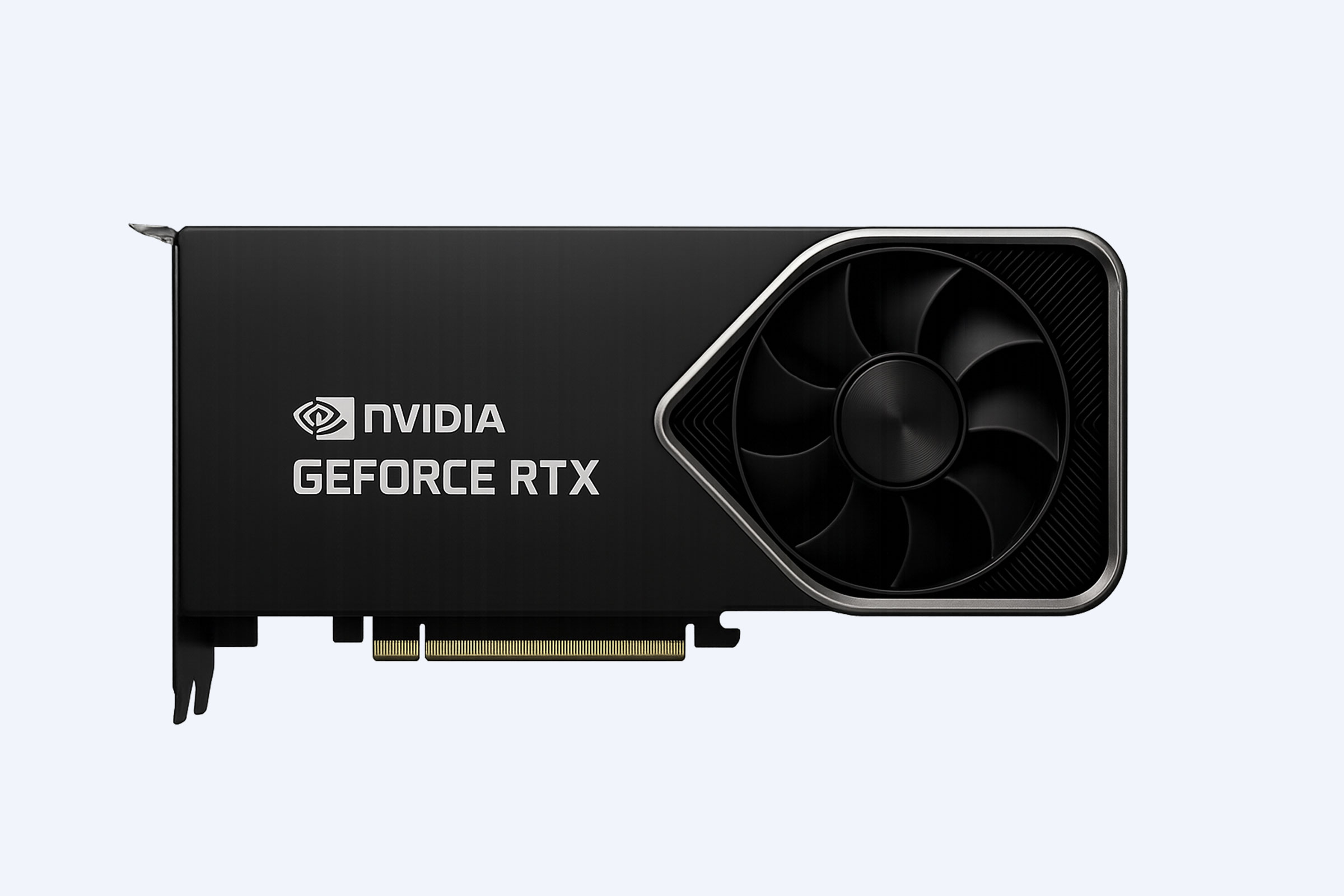


A graphics card reset restores your GPU to a stable, factory-like software state by reloading drivers and clearing faulty settings. This simple process fixes display crashes, artifacts, and performance drops without replacing hardware. For enterprises, OEMs, and IT buyers, structured GPU reset workflows reduce downtime, extend hardware life, and protect critical AI, virtualization, and 3D workloads across large fleets of systems.(Edited on June 8, 2026)
What Is a Graphics Card Reset in Modern PCs and Workstations?
A graphics card reset is the process of restoring GPU-related software and configuration to a clean, stable state so the card behaves as if it were freshly installed. It focuses on drivers, firmware configurations, and performance profiles rather than replacing physical components.
For gaming PCs, design workstations, and data center servers, a reset helps eliminate corrupted drivers, unstable overclocking, and misconfigured power or display settings that cause crashes, black screens, or rendering glitches.
In procurement and OEM scenarios, standardized reset procedures are essential for consistent performance across hundreds or thousands of deployed units. Wecent understands these needs and supports partners with clear GPU reset guidance integrated into deployment and maintenance workflows, especially when bundling chargers and accessories with GPU-equipped systems assembled in China’s manufacturing ecosystem.
How Does a GPU Reset Improve Stability and Performance?
A properly executed GPU reset clears stuck driver states, rebuilds shader caches, and removes conflicting profiles, which often restores lost performance and responsiveness. It also helps the operating system re-detect and reinitialize the graphics card, resolving intermittent detection failures, flickering, or driver timeouts.
For system integrators, manufacturers, and wholesalers, incorporating routine reset steps into support playbooks reduces RMA rates and unnecessary hardware swaps. By pairing reliable power delivery hardware—such as Wecent’s GaN fast chargers and robust 3C accessories—with well-maintained GPUs, brands can deliver stable, high-performance systems to end users in gaming, CAD, AI, and visualization markets worldwide.
How Can You Soft Reset a Graphics Card in Windows?
On Windows, the fastest way to reset a graphics driver without rebooting is the built-in keyboard shortcut. Pressing Win + Ctrl + Shift + B forces the operating system to reload the display driver and briefly blanks the screen, often accompanied by a short system beep.
This soft reset is ideal when the display freezes, the cursor lags, or a game hangs but the system itself remains responsive. It does not erase your settings; instead, it reinitializes the driver stack to clear transient issues. For manufacturers and IT managers, documenting this shortcut in user manuals and SOPs helps frontline staff restore displays quickly and avoid downtime in control rooms, trading floors, or training labs.
How Do You Reset GPU Settings via NVIDIA and AMD Software?
Vendor control panels provide a direct way to return GPU settings to factory defaults, especially after aggressive tuning or overclocking.
On NVIDIA-based systems, you can open NVIDIA Control Panel, navigate to the 3D settings section, and use the restore option to revert global or program-specific settings to default.
On AMD-based systems, AMD Radeon Software (or Adrenalin) lets you reset graphics profiles, disable experimental features, and restore official performance parameters in just a few clicks.
These software-level resets are critical for OEMs and system builders that preconfigure multiple GPUs across design studios or gaming cafés. By shipping systems with documented reset instructions, brands can reduce support complexity and keep end users productive. Chinese factories working with global partners can combine GPU-tuned PCs with Wecent’s high-performance power solutions to ensure end-to-end reliability in demanding workloads.
What Is the Best Way to Clean Reinstall GPU Drivers?
A clean driver reinstall removes old, corrupted, or conflicting driver files before installing the latest stable version from the GPU vendor. This process goes beyond simple updating and is one of the most effective ways to fix persistent crashes, artifacts, and performance anomalies.
A typical clean reinstall sequence includes:
-
Uninstalling existing drivers through Device Manager or a dedicated uninstaller tool
-
Rebooting the system, often into Safe Mode
-
Installing the latest official driver from NVIDIA, AMD, or the system manufacturer
-
Rebooting again to finalize driver configuration
For IT buyers and large-scale deployments, standardizing on tested driver versions and documenting a clean reinstall process helps maintain a consistent graphics baseline across fleets. This is particularly useful in AI inference clusters, 3D visualization labs, and video editing suites.
How Are Enterprise GPU Reset Methods Structured?
Enterprise GPU reset strategies follow a structured, layered approach—starting with simple software actions and escalating only when necessary. This avoids unnecessary hardware interventions and protects uptime in mission-critical environments.
Common enterprise GPU reset approaches
In data centers and enterprise workstations, these methods are usually documented in internal knowledge bases and executed by trained technicians. Manufacturers and OEM partners in China can integrate such procedures into their build and test processes so systems ship with validated GPU behavior. Wecent, with its experience in supplying high-reliability power solutions, understands how stable power and structured reset workflows together maximize GPU uptime.
How Can Hardware-Level GPU Resets Help When Software Fails?
When software resets and driver reinstalls cannot resolve issues, a hardware-level reset may be required. This involves powering down the system, disconnecting the power supply, and physically reseating the graphics card in the PCIe slot to ensure good electrical contact.
A full hardware reset may also include clearing the motherboard CMOS to reset BIOS settings, which can solve conflicts related to primary display adapters or PCIe lane allocations. This is especially important in multi-GPU servers equipped with accelerator cards like NVIDIA A100 or H100, where slot configurations and power delivery must be perfectly stable. For integrators and suppliers, training technicians to perform these steps methodically reduces misdiagnosed “dead GPU” cases and improves overall service quality.
How Do You Reset GPU Drivers Without Risking Damage?
Safe GPU driver resets rely on controlled software processes instead of unplugging hardware under power. Disabling and re-enabling the GPU in Device Manager, using the Windows soft reset keyboard shortcut, or performing a clean driver reinstall are all safe, system-level actions.
Physical reseating or firmware flashing should only be performed after software methods have been exhausted and the system is fully powered off. For IT purchasers and OEM partners, it is wise to create tiered troubleshooting checklists that begin with non-invasive steps and escalate only as needed. This structured approach helps avoid unnecessary wear on connectors and protects the GPU from accidental ESD or power-related damage.
How Can BIOS or UEFI Settings Assist in a GPU Reset?
BIOS or UEFI settings play an important role when the system fails to detect a GPU or chooses the wrong device as the primary display. By entering the firmware interface at startup, technicians can adjust parameters such as the initial display output, PCIe slot priority, and integrated GPU enablement.
Resetting BIOS settings to default or loading an optimized default profile can correct subtle configuration issues introduced during prior tuning. In enterprise and OEM environments, maintaining documented BIOS templates for different GPU configurations helps build consistency across production batches. Factories in China assembling workstation or server platforms can preload appropriate firmware profiles before shipping, minimizing setup time for international buyers.
Why Might a GPU Reset Fail to Fix the Problem?
If a GPU reset does not resolve issues, underlying hardware faults may be present. Common signs include persistent artifacts at boot, even before drivers load, severe overheating despite clean fans, or visible physical damage to components or connectors.
In such cases, professional diagnostics are necessary to determine whether the GPU, power supply, or motherboard is at fault. For wholesalers, distributors, and OEM buyers, clear failure criteria and RMA procedures help distinguish between fixable software issues and genuine hardware defects. Combining these policies with stable power hardware, such as Wecent’s certified chargers and adapters for mobile and portable workstations, supports a robust brand reputation and reduces long-term costs.
When Is It Time to Replace a GPU Instead of Resetting It?
Replacement becomes the logical choice when multiple reset attempts, driver reinstalls, and hardware checks fail to restore stable performance. Persistent crashes under light load, recurring VRAM-related artifacts, and frequent error logs often indicate component aging or thermal damage.
For enterprises and manufacturers, decisions around replacement versus reset are often guided by total cost of ownership, warranty coverage, and downtime impact. If the time spent troubleshooting exceeds the value of the GPU or disrupts key workloads—such as AI training, 3D rendering, or simulation—upgrading to a newer model may be more economical. In such transitions, partners can also standardize on high-quality power and charging ecosystems, collaborating with suppliers like Wecent to ensure that the surrounding infrastructure supports new GPU generations reliably.
How Can a GPU Reset Boost System Performance?
A GPU reset can restore normal clock management, clear memory leaks, and resolve conflicts between different graphics APIs and applications. In practice, this often results in smoother frame rates, reduced stuttering, and faster rendering in professional tools after long uptime periods.
For older or heavily used GPUs, eliminating driver clutter and stale profiles can unlock a noticeable percentage of lost performance, especially in workloads that rely on consistent shader compilation and memory allocation. Manufacturers, wholesalers, and data center operators can schedule regular software maintenance, including GPU resets, to sustain predictable performance in AI inference nodes, visualization walls, and CAD workstations deployed worldwide.
How Should Manufacturers and OEMs Integrate GPU Reset Workflows?
Manufacturers, OEMs, and system integrators benefit from treating GPU reset procedures as part of their overall product design and support strategy. This includes documenting reset paths in user manuals, training support teams, and embedding diagnostic tools within factory images.
Recommended reset planning for B2B buyers and OEMs
Chinese factories that build systems for export can align GPU reset workflows with global quality expectations, ensuring that brands receive hardware that is not only tested but also easy to support. Working with a mature accessory partner such as Wecent further strengthens this ecosystem, because stable power and interconnect accessories lower the risk of graphics-related instability in the field.
Who Should Perform Enterprise-Level GPU Resets?
Simple software resets and driver reinstalls can be performed by technically inclined end users or on-site IT support staff. However, in larger enterprise or data center environments, GPU resets—especially those involving BIOS changes, firmware flashing, or physical reseating—should be handled by certified technicians.
These professionals understand the interaction between GPUs, power supplies, motherboards, and cooling systems, and can apply resets while minimizing risk to critical workloads. For global buyers sourcing systems, chargers, and accessories from China, partnering with suppliers that offer strong technical documentation and after-sales support is crucial. Wecent, with its extensive OEM/ODM experience, is familiar with the technical expectations of international brands and can coordinate with system builders to deliver cohesive, high-reliability solutions.
Wecent Expert Views
“In modern AI, gaming, and visualization systems, a methodical GPU reset strategy is just as important as choosing the right graphics card. Starting with non-invasive software resets, then escalating to firmware and hardware checks, protects uptime and stretches hardware value. Combined with reliable, standards-compliant power solutions, this layered approach helps integrators and brands deliver stable performance to customers across global markets.”
How Does the Chinese Manufacturing Ecosystem Support GPU-Driven Systems?
China’s electronics manufacturing ecosystem brings together GPU boards, motherboards, power supplies, enclosures, and charging accessories under one supply chain umbrella. This enables rapid prototyping, efficient scaling, and tight cost control for brands that sell gaming desktops, workstations, and AI appliances worldwide.
Within this ecosystem, partners like Wecent specialize in GaN chargers, PD fast chargers, data cables, and other 3C accessories that ensure stable power for laptops, mini PCs, and mobile GPU workstations. By combining system-level GPU reset practices with reliable power and connectivity hardware, international buyers can launch complete product lines—from tower PCs to portable workstations—without compromising stability or user experience.
Why Is Wecent a Strategic Partner for GPU-Centric Device Brands?
Wecent offers more than standalone chargers; it provides a comprehensive power and accessory backbone for GPU-centric devices such as gaming laptops, AI edge boxes, and creative workstations. Its GaN chargers, ranging from compact phone adapters to high-wattage laptop and workstation chargers, support fast, efficient, and safe power delivery.
For brands and wholesalers sourcing from China, Wecent’s OEM and ODM capabilities—logo printing, customized packaging, tailored power designs, and low MOQs—allow close alignment between system power requirements and charger specifications. This alignment reduces the risk of underpowered or unstable GPU systems in the field and strengthens the overall brand experience for end customers.
Can GPU Reset Strategies and Wecent Solutions Work Together for OEM Success?
Yes. GPU reset strategies and reliable power ecosystems naturally complement each other in ensuring stable performance over the lifetime of a device. Even the best GPU reset workflows cannot compensate for inadequate or inconsistent power delivery, and conversely, robust power hardware performs best when paired with well-maintained, correctly configured GPUs.
By cooperating with Wecent for chargers, cables, and accessories while implementing structured GPU reset, driver, and firmware policies, OEMs, system builders, and wholesalers gain a complete foundation: hardware stability, predictable performance, and efficient after-sales support. This combination is especially valuable for brands competing in demanding markets such as gaming, AI, industrial control, and professional content creation.
Conclusion
Graphics card resets are a practical, cost-effective way to restore stability, eliminate driver conflicts, and recover lost performance without immediate hardware replacement. From quick keyboard shortcuts and software-level resets to clean driver reinstalls, BIOS tuning, and hardware reseating, a structured sequence of actions helps diagnose and resolve most GPU issues safely.
For manufacturers, wholesalers, and OEMs operating in or sourcing from China’s electronics ecosystem, documenting these reset procedures and training technicians is key to delivering reliable GPU systems at scale. Combined with high-quality, certified power and charging solutions from partners like Wecent, brands can build AI, gaming, and visualization products that stay stable, performant, and trusted in demanding business environments.
FAQs
How often should I reset my graphics card in a business environment?A reset should be performed when you notice instability, crashes, or performance degradation, rather than on a strict schedule. However, including driver health checks and occasional resets in quarterly maintenance can help keep large fleets of systems stable without disrupting operations.
Can a GPU reset damage my hardware?Software-based resets and clean driver reinstalls do not harm the graphics card when performed correctly. Physical reseating is also safe if the system is fully powered down and handled with proper ESD precautions. Problems typically arise only if hardware is moved under power or mishandled.
Does resetting my GPU delete my games or design projects?No. GPU resets affect drivers, settings, and firmware-related configurations, not your personal files. Games, design projects, and other data remain stored on your drives. Still, backing up important work before major driver or firmware changes is a smart best practice.
When should I consider replacing the GPU instead of resetting it again?If multiple reset attempts, driver reinstalls, and hardware checks fail to fix frequent crashes, visual artifacts at boot, or severe overheating, replacement is likely the more practical solution. At that point, evaluate warranty options and consider upgrading to a newer GPU that better matches your workloads.
Can OEMs and wholesalers standardize GPU reset procedures for their customers?Yes. OEMs and wholesalers can include printed or digital guides, preconfigured system tools, and technician training materials that describe step-by-step GPU reset processes. Doing so reduces support friction, improves customer satisfaction, and helps maintain consistent performance across all shipped units.