


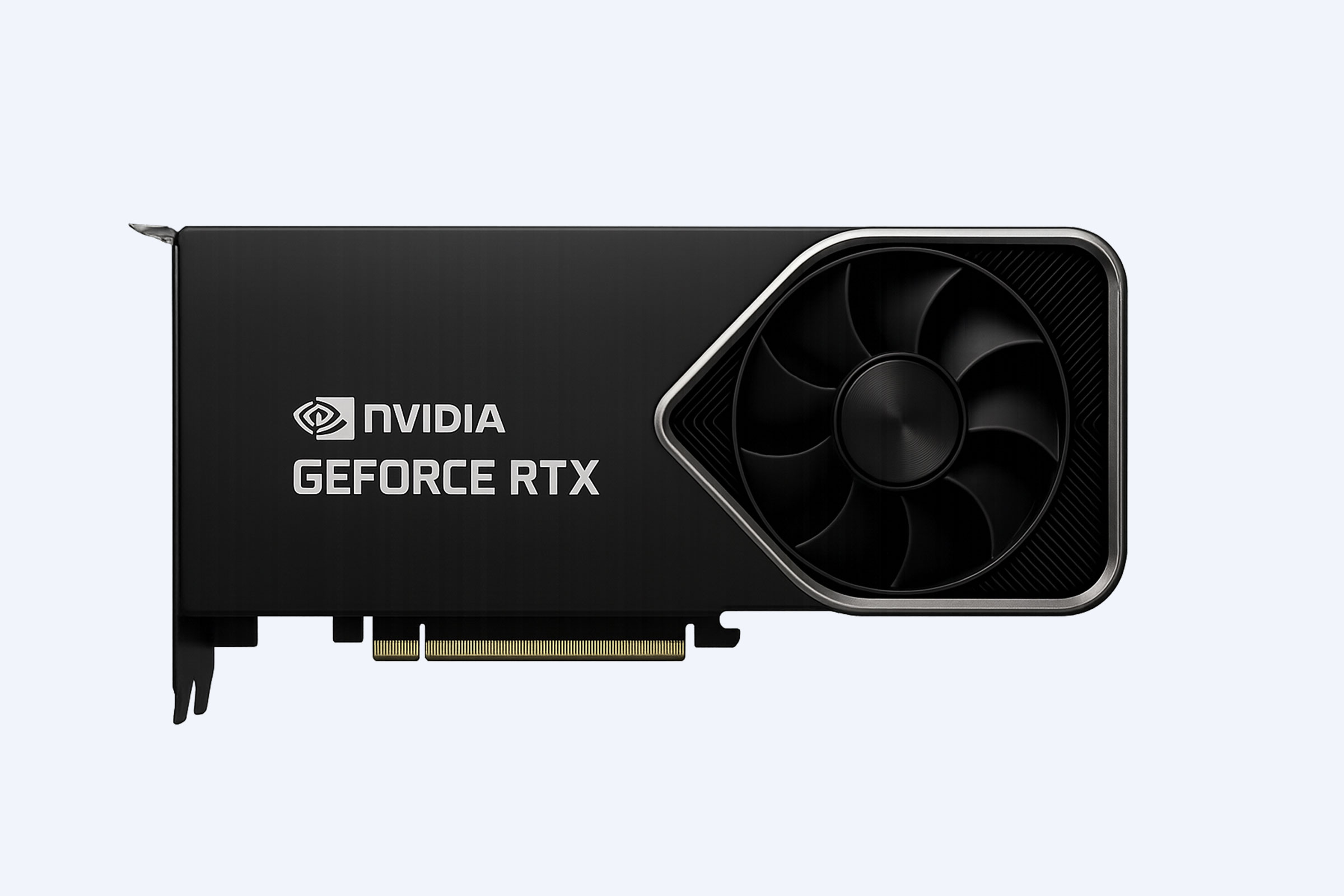


Resetting a graphics card resolves display crashes, driver conflicts, and performance glitches without replacing hardware. It restores stability, optimizes rendering, and ensures compatibility across applications and operating systems. Enterprises and workstations benefit from proper GPU resets to maintain efficiency, minimize downtime, and safeguard critical computing workloads, with professional guidance from WECENT for both consumer and data center-class GPUs.
What Is a Graphics Card Reset?
A graphics card reset restores GPU functionality by returning drivers and settings to default. It addresses software corruption, configuration errors, and overclocking issues. In enterprise IT, this process is crucial to prevent instability in virtualization, AI computation, or heavy rendering workloads before considering hardware replacement.
How Can You Reset Your Graphics Card in Windows?
Windows users can reset their GPU using the Ctrl + Shift + Win + B shortcut. This refreshes drivers and reinitializes the display without a full reboot. For persistent problems, a clean driver reinstall ensures complete restoration.
Steps for Windows GPU Reset:
-
Press Ctrl + Shift + Win + B to trigger a soft reset.
-
Observe a screen flash or beep confirming reset.
-
Open Device Manager → Display Adapters, right-click the GPU, and select Uninstall device.
-
Reboot; Windows will reinstall default drivers.
-
Use vendor software like NVIDIA Control Panel or AMD Radeon Settings for fine-tuning.
Why Does Your Graphics Card Need Resetting?
A reset is recommended when GPUs exhibit:
-
Black screens or driver timeouts
-
Overheating or abnormal fan behavior
-
Slow rendering in software or games
-
Artifacts, flickering, or color distortion
In enterprise settings, GPU instability disrupts AI workloads, virtualization clusters, and video rendering. Timely resets reduce downtime and maintain operational efficiency.
Which Methods Work Best for Enterprise GPU Reset?
Enterprise GPU resets often require structured approaches to maintain reliability.
| Reset Method | Best For | Example Use Case |
|---|---|---|
| Shortcut Reset | Workstations | Immediate recovery after display freeze |
| Driver Reinstallation | Desktops / Servers | Resolving post-update errors |
| BIOS Reset | Enterprise Servers | Correcting hardware configuration conflicts |
| Vendor Software Reset | Multi-GPU Farms | Coordinated GPU management |
Are There Hardware-Level Ways to Reset a GPU?
Yes. Hardware resets include reseating the GPU or clearing CMOS, ensuring the system reinitializes completely and resolves slot or power irregularities.
Hardware Reset Steps:
-
Power off and unplug the system.
-
Remove the GPU from the PCIe slot.
-
Clear CMOS via motherboard jumper or switch.
-
Reinstall the GPU firmly.
-
Boot and reinstall drivers.
This is essential for multi-GPU servers using NVIDIA A100, A40, or H100, available through WECENT’s enterprise solutions.
How Do You Reset GPU Drivers Properly?
Clean installation is key for driver resets:
-
Download the latest official drivers from NVIDIA or AMD.
-
Uninstall existing drivers using Device Manager or DDU (Display Driver Uninstaller).
-
Install new drivers with the “Clean Install” option enabled.
-
Reboot to finalize configuration.
This maintains stability across operating systems and complex deployments.
Can BIOS or UEFI Help in GPU Reset?
BIOS/UEFI can force GPU resets by clearing stored configurations or prioritizing PCIe slots. This resolves detection issues when installing enterprise-grade GPUs.
Steps:
-
Enter BIOS at boot (Del or F2).
-
Set the primary display adapter to the correct GPU.
-
Save and exit to apply changes.
What Happens If Resetting Doesn’t Work?
Persistent GPU issues may indicate thermal damage, power inconsistencies, or defective VRAM. Enterprise IT teams often consult WECENT for diagnostics, warranty replacement, or guidance on compatible RTX, Quadro, and Tesla GPUs.
Why Choose an Authorized IT Equipment Supplier Like WECENT?
Authorized suppliers like WECENT provide verified, compliant hardware and expert configuration support. Partnering with Dell, HPE, Lenovo, Cisco, and NVIDIA, WECENT ensures seamless deployment of GPU-intensive systems for AI, virtualization, and data centers.
| WECENT Enterprise GPU Range | Series | Applications |
|---|---|---|
| NVIDIA RTX | 5090, 5080, 4080, 4090 | AI, Deep Learning |
| NVIDIA Quadro / RTX A Series | A2000–A6000 | CAD, Design, Visualization |
| Data Center GPUs | A100, H100, B200 | Cloud AI, Data Analytics |
Who Should Perform a GPU Reset?
Simple resets can be done by users, but enterprise-level resets require certified technicians. WECENT specialists deliver diagnostics, firmware updates, and performance calibration across finance, healthcare, education, and data-heavy operations.
When Is It Time to Replace a GPU Instead of Resetting It?
If resets fail or visual errors persist, hardware degradation may be present. Signs include excessive noise, burn marks, or repeated driver crashes. Stability testing helps IT managers make cost-effective replacement decisions.
WECENT Expert Views
“GPU reset in enterprise setups should be methodical, starting with software checks before hardware intervention. At WECENT, we emphasize preventive maintenance, firmware validation, and using genuine components to maintain high-efficiency environments, ensuring reliable operation for AI workloads, virtualization, and heavy rendering systems.”
Could GPU Reset Boost Your System Performance?
Yes. Resets eliminate driver conflicts, optimize memory use, and prevent throttling. In older or overclocked GPUs, performance can improve 15–20% in rendering and compute tasks when maintained regularly in enterprise systems.
Conclusion
Resetting a GPU restores stability, improves performance, and prevents downtime. A systematic approach—from soft resets to hardware intervention—ensures optimal results. Relying on trusted IT suppliers like WECENT guarantees authentic hardware, expert support, and long-term reliability for enterprise and workstation environments.