




Pressing Win+Ctrl+Shift+B on Windows 10 and 11 forces a fast graphics driver reset, restoring a frozen, black, or laggy display without rebooting your PC. The screen briefly flickers, the GPU driver reloads, and most apps and games keep running. This makes the shortcut ideal for gamers, creators, and professionals who need rapid recovery and minimal downtime.(Edited on June 8, 2026)
What Is the Win+Ctrl+Shift+B Shortcut in Windows?
The Win+Ctrl+Shift+B shortcut is a built-in Windows command that restarts the graphics driver and refreshes the display pipeline. When triggered, Windows reinitializes the graphics subsystem, recreates the desktop output, and clears temporary GPU hangs that cause black screens, artifacts, or frozen frames. This targeted reset focuses on the display stack rather than rebooting the entire operating system.
Gamers, 3D designers, and video editors rely on this keystroke as an emergency recovery tool when a demanding title or rendering task overloads the GPU. Because it does not close active applications, it is especially valuable in long simulations, live production environments, and enterprise workflows where uptime matters.
How Does Win+Ctrl+Shift+B Work Behind the Scenes?
When you press Win+Ctrl+Shift+B, Windows sends a signal to the graphics stack to reload the driver and reset the Desktop Window Manager (DWM). The active display surface is briefly dropped and recreated, which explains the momentary flicker or black screen followed by a system beep. In most cases, the desktop, open windows, and running games return exactly where they were.
This process also clears corrupted frame buffers and minor driver deadlocks that can accumulate during long high-load sessions. By focusing only on the video output path, it keeps CPU tasks, memory allocations, and storage operations intact, reducing the risk of data loss compared to a hard power reset.
How Do You Use the Shortcut to Refresh GPU Drivers Safely?
To use the shortcut correctly, hold down the Windows key, Ctrl, and Shift simultaneously, then tap the B key once. Your monitors may briefly go black, and you might hear a confirmation beep, indicating the driver reset is in progress. Wait a few seconds for the desktop or game to reappear before pressing additional keys or attempting other fixes.
If the issue persists, you can repeat Win+Ctrl+Shift+B up to two or three times in a row to clear stubborn GPU hangs. It is wise to test the shortcut during idle moments first so you recognize the normal flicker and sound. This helps you distinguish between a successful reset and a deeper system crash that may require a full reboot.
Why Is Win+Ctrl+Shift+B Safer Than Rebooting or Killing Tasks?
The shortcut is designed to reset only the graphics driver and display pipeline, which greatly reduces the chance of corrupting open files or losing unsaved work. Unlike using Task Manager to end a game or creative application, this method does not forcibly terminate user processes. Your projects, documents, and game sessions usually remain intact, assuming the software itself has not crashed.
In contrast, holding the power button or unplugging the system interrupts the entire operating system and can trigger file system errors. For many professionals and enterprises working with large datasets or long renders, Win+Ctrl+Shift+B acts as a first-line recovery mechanism before more disruptive actions are considered.
What Problems Can the GPU Refresh Shortcut Fix?
The Win+Ctrl+Shift+B shortcut effectively addresses several common display and GPU-related symptoms. Typical issues it can resolve include sudden black screens while the PC is still running, frozen frames in games, heavy stuttering after alt-tabbing, or residual artifacts from a minor driver crash. It also helps resynchronize display outputs after waking from sleep or switching between full-screen apps.
For multi-monitor setups, it can refresh all connected displays at once, correcting mismatched refresh rates or displays that fail to wake properly. In simulation games, video editing, and 3D rendering, it can clear temporary memory leaks in the graphics pipeline without forcing you to shut down the software or reload scenes.
When Should You Use Win+Ctrl+Shift+B During Gaming or Work?
Use the shortcut the moment you notice the display frozen but you can still hear audio or tell the system is responsive. This often happens in GPU-intensive games, VR experiences, or 3D applications when the graphics driver encounters a temporary fault. Triggering the reset quickly can restore visuals before the application times out or crashes.
It is also helpful after long sessions where you see unusual tearing, flickering, or visual glitches that are clearly driver-related. For professionals in CAD, video production, or AI visualization, using the shortcut as a non-intrusive first aid tool can dramatically cut downtime across a workday.
Can Win+Ctrl+Shift+B Help in Multi-Monitor and Simulation Game Setups?
Yes, multi-monitor users benefit significantly from this shortcut because it resets the GPU output across all attached displays simultaneously. This can fix issues where one monitor remains black, another shows a frozen frame, or high-refresh gaming screens fall out of sync with productivity monitors. It is especially valuable in cockpit-style or ultra-wide simulation setups.
Simulation games such as racing sims and flight sims often push GPUs with complex physics, high-resolution textures, and multiple viewports. When these titles trigger driver instability, Win+Ctrl+Shift+B can restore video output without forcing a restart of the entire sim environment, preserving immersion and session continuity.
Which Issues Mean the Shortcut Is Not Enough?
If the screen remains black after several attempts, the problem may lie beyond the graphics driver. Persistent failures can indicate corrupted drivers, incompatible Windows updates, overheating GPUs, VRAM errors, or power delivery issues. In these cases, a full reboot, clean driver reinstall, or hardware inspection may be necessary.
Frequent reliance on the shortcut during normal use is also a warning sign. It suggests deeper instability from outdated drivers, aggressive overclocking, or failing hardware components. Logging events in Windows Reliability Monitor and monitoring GPU temperatures can help pinpoint whether the root cause is software or physical degradation.
How Does the Shortcut Compare to Other GPU Troubleshooting Methods?
The Win+Ctrl+Shift+B shortcut stands out for speed, safety, and convenience compared to other recovery methods. Instead of spending minutes rebooting or performing a clean driver installation, users can return to a functional display in seconds. This makes it ideal for everyday troubleshooting and live environments.
Below is a comparison of common approaches:
This comparison shows why professionals and gamers often treat the shortcut as a first step and reserve more invasive options for persistent or repeat failures.
Are Certain GPUs Less Likely to Need Frequent Resets?
Modern high-end GPUs, especially those with mature driver ecosystems, tend to experience fewer driver-related hangs in typical workloads. Robust cooling, stable power delivery, and optimized drivers all contribute to lower crash rates. However, even flagship GPUs can encounter edge-case bugs in newly released games or under experimental overclocking.
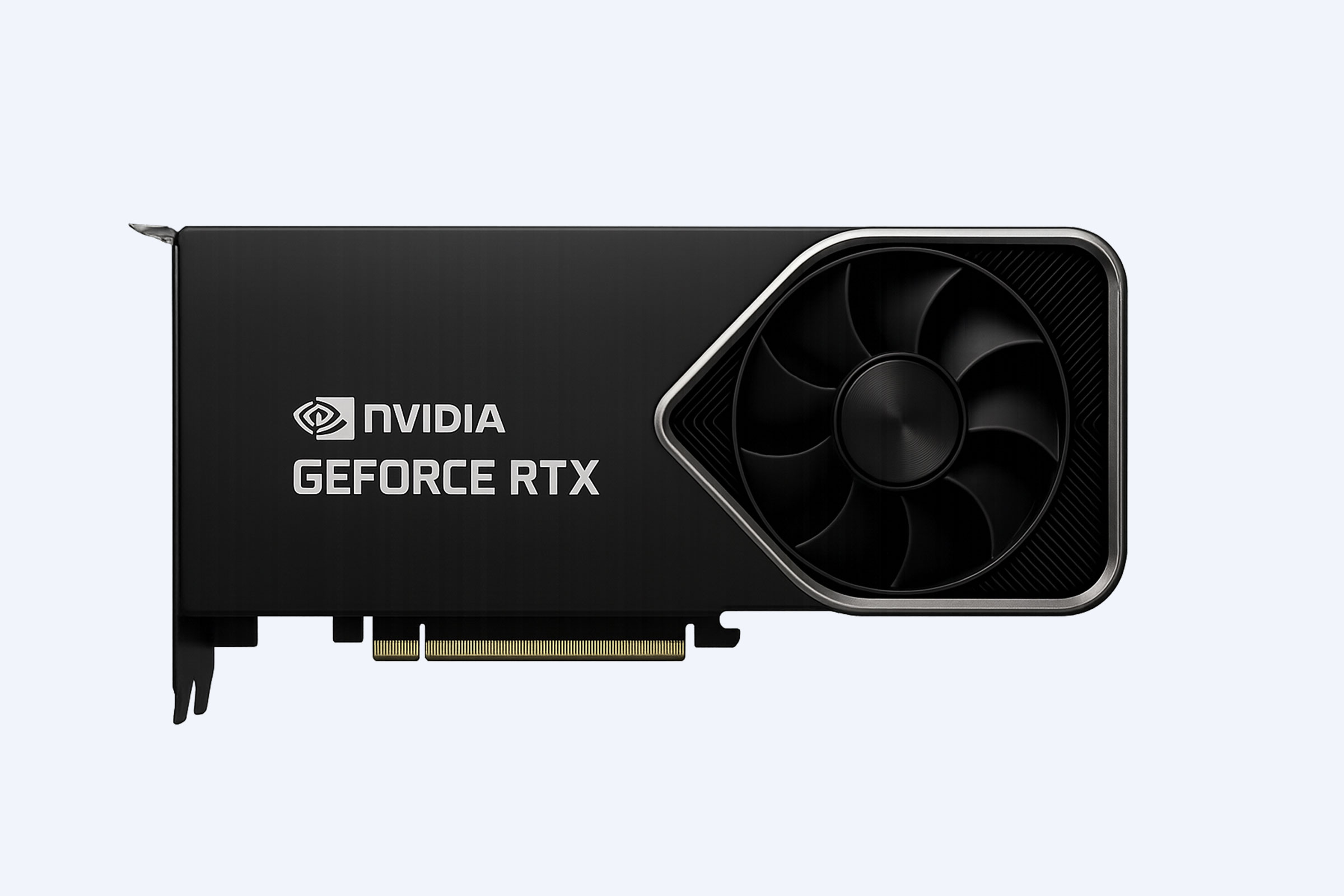
Well-balanced systems using recent NVIDIA GeForce or AMD Radeon architectures paired with quality PSUs and adequate case airflow usually rely less on emergency resets. For data center and workstation environments, professional and server GPUs with certified drivers are designed for maximum stability under 24/7 loads.
What Are Some GPU Models and Use Cases That Benefit From Stable Drivers?
Different GPU families serve different workloads, and stability is critical across all of them. Below is an example of models and where they excel:
While these GPUs are engineered for high reliability, the Win+Ctrl+Shift+B shortcut remains useful as a quick safety net when unexpected display lag or glitches occur.
How Can WECENT Help With Long-Term GPU and Server Stability?
WECENT supports businesses and power users by supplying original, enterprise-grade hardware from brands such as Dell, Huawei, HP, Lenovo, Cisco, and H3C. With deep experience in server platforms, storage arrays, and professional GPUs, WECENT helps design stable infrastructures that minimize driver crashes and display interruptions.
By matching NVIDIA GeForce, professional RTX, and data center series GPUs with optimized servers and storage, WECENT delivers balanced systems for virtualization, cloud computing, big data, and AI workloads. This holistic approach reduces the need for emergency fixes and helps enterprises maintain consistent uptime.
Why Should Enterprises and Creators Consider WECENT Hardware Solutions?
Enterprises, studios, and research organizations need more than just a powerful GPU; they require integrated solutions tuned for reliability. WECENT offers servers, switches, GPUs, SSDs, HDDs, and CPUs as part of complete infrastructure packages tailored to specific industries such as finance, healthcare, education, and high-density data centers.
WECENT also provides OEM and customization services, enabling wholesalers, system integrators, and brand owners to deliver branded, high-performance servers to their clients. By partnering with globally certified manufacturers and offering warranty-backed components, WECENT ensures that both single workstations and large clusters operate smoothly under demanding workloads.
Who Is WECENT the Right Partner For?
WECENT is a strong fit for organizations building new IT environments, upgrading aging server rooms, or expanding GPU capacity for AI, simulation, and graphics-intensive applications. Businesses that rely on 24/7 services, such as online platforms, digital agencies, and research labs, benefit from WECENT’s emphasis on reliability and fast-response support.
The company’s expertise extends from initial consultation and configuration to installation, maintenance, and ongoing technical assistance. For users often resorting to Win+Ctrl+Shift+B due to overloaded consumer systems, migrating to properly engineered WECENT hardware can markedly reduce instability.
What Are WECENT Expert Views on Display Lag and GPU Resets?
“Win+Ctrl+Shift+B is an excellent first response to display lag, but repeated use is a sign that your hardware or drivers may be misaligned with your workloads. WECENT recommends pairing stable, enterprise-ready GPUs with properly sized power, cooling, and storage. This combination reduces unexpected GPU hangs, cuts downtime, and gives organizations a more predictable, secure infrastructure foundation.”
How Do You Distinguish Between Driver Bugs and Hardware Failure?
A successful recovery after pressing Win+Ctrl+Shift+B generally points to a software or driver issue rather than a physical defect. If the system becomes smooth and responsive again and the problem appears only after specific applications or driver updates, it is likely a driver-related glitch. Updating or rolling back drivers often resolves such cases.
If the shortcut has no effect, or if the system shows recurring artifacts, random reboots, or coil whine, hardware problems may be involved. Stress tests that quickly trigger crashes, together with error entries in system logs, reinforce the likelihood of failing GPU cores, VRAM faults, or power supply issues that require repair or replacement.
Can Monitoring Tools Help Reduce Reliance on the Shortcut?
Yes, monitoring tools play a key role in preventing the conditions that lead to GPU hangs. By tracking GPU temperature, clock speeds, VRAM usage, and power draw, you can identify trends that precede display lag or black screens. If temperatures regularly approach thermal limits, improving airflow or adjusting fan curves can stabilize performance and reduce crashes.
Utilities that log driver crashes and system events help correlate problems with specific driver versions or workloads. Combined with cautious overclocking and regular driver maintenance, these tools minimize the need to rely on emergency keyboard shortcuts and support long-term reliability.
Could Hardware Upgrades and Balanced Systems Make the Shortcut Rarely Needed?
Well-planned hardware upgrades can significantly reduce display instability and GPU-related hangs. Moving from older GPUs to newer architectures with better driver support, adding memory, or upgrading to a more robust PSU all contribute to smoother performance. For mission-critical environments, investing in professional or data center GPUs designed for constant load can be especially impactful.
Working with an experienced supplier such as WECENT ensures that GPU, CPU, storage, and networking resources are matched correctly. Balanced systems not only perform better but also operate within safe thermal and power limits, making it far less likely that you will need to rely on Win+Ctrl+Shift+B on a regular basis.
Is Win+Ctrl+Shift+B Enough for Permanent Stability?
Win+Ctrl+Shift+B is best viewed as an emergency recovery and diagnostic tool, not a permanent cure. It is highly effective for clearing transient driver hangs and returning you to productivity in seconds. However, repeated use signals the need for more thorough steps such as updating or reinstalling drivers, adjusting settings, or evaluating hardware health.
For gamers and professionals, the most stable environments combine good driver hygiene, regular system maintenance, quality hardware, and proper cooling. Partnering with infrastructure specialists like WECENT can help design and deploy systems that seldom require last-resort shortcuts, even under heavy, continuous workloads.
Key Takeaways and Actionable Advice
The Win+Ctrl+Shift+B shortcut is one of the most useful built-in tools for instantly refreshing GPU drivers on Windows 10 and 11. Use it whenever your display freezes, goes black, or shows severe lag while the system is still running. If it restores the screen, continue working but monitor for recurrence.
If you find yourself using the shortcut frequently, investigate deeper causes: update GPU drivers, reduce aggressive overclocking, monitor temperatures, and check hardware health. For professionals and organizations that depend on GPU-intensive workloads, consider upgrading to robust, enterprise-grade solutions. Collaborating with WECENT for servers, storage, and GPUs can deliver a stable, scalable platform that keeps visual workloads running smoothly with fewer interruptions.
FAQs
What happens to my files when I press Win+Ctrl+Shift+B?The shortcut only resets the graphics driver and display pipeline, so your open files and applications normally remain intact. However, if a specific app has already crashed, any unsaved changes inside that app may still be lost.
Can this shortcut damage my GPU or monitor?No, under normal conditions the shortcut does not harm your GPU or displays. It uses a supported Windows command to reinitialize the graphics stack and is considered a safe troubleshooting step provided it is not used to ignore obvious overheating or hardware faults.
Why does my screen flicker and beep when I use the shortcut?The flicker and beep are visual and audio confirmations that Windows is resetting the graphics stack. The display output is briefly dropped and reestablished, which is why you see a momentary black screen before everything returns.
Should I still update drivers if the shortcut fixes my issue?Yes. If display problems recur, updating to the latest stable GPU driver or performing a clean installation is recommended. The shortcut is a fast remedy, but driver updates address the underlying software bugs that trigger GPU hangs.
When should I consider hardware upgrades instead of relying on the shortcut?If you encounter frequent black screens, crashes under moderate loads, or need the shortcut almost every day, hardware upgrades may be necessary. Upgrading to a more capable GPU, adding system memory, or improving power and cooling—ideally through a solution provider such as WECENT—can deliver much more stable performance.