




GPU virtualization, particularly NVIDIA vGPU technology, transforms physical server GPUs into shared virtual resources, enabling high-performance remote graphics for CAD and3D rendering teams. This allows IT to provision secure, scalable virtual workstations from a centralized data center, optimizing hardware utilization and facilitating global collaboration.
How does GPU virtualization technology work on a server?
GPU virtualization partitions a physical GPU’s resources, like memory and cores, into secure virtual GPUs. These vGPUs are assigned to virtual machines, allowing them direct access to hardware acceleration. The hypervisor and specialized drivers manage this resource allocation, enabling multiple users to share a single, powerful graphics card efficiently.
The technical foundation of vGPU technology is built upon a hardware-mediated pass-through model. Unlike software-based rendering, the physical GPU is directly involved in processing graphics commands from each virtual machine. The hypervisor, such as VMware vSphere or Citrix Hypervisor, uses a specialized driver split into two components: the host driver and the guest driver. The host driver manages the physical GPU and creates the virtual GPU profiles, which define the amount of framebuffer memory, display heads, and compute capacity allocated to each VM. The guest driver, installed within the virtual machine, communicates with the virtual GPU as if it were a physical device. For instance, a server with a single NVIDIA A40 GPU could be partitioned into four12GB vGPU instances, each powering a separate virtual workstation for a CAD designer. This is analogous to a high-rise building with separate, secure apartments; each tenant has a private, functional living space supported by the shared foundational infrastructure of the building. The process ensures isolation and performance consistency, but how does the system prevent one user’s intensive rendering from affecting another’s session? And what happens when you need to dynamically adjust resources without rebooting the VMs? Transitioning from the core technology, it’s crucial to consider the practical implementation, which involves careful planning of the server hardware and software stack to meet specific workload demands.
What are the key hardware requirements for a vGPU server for remote CAD?
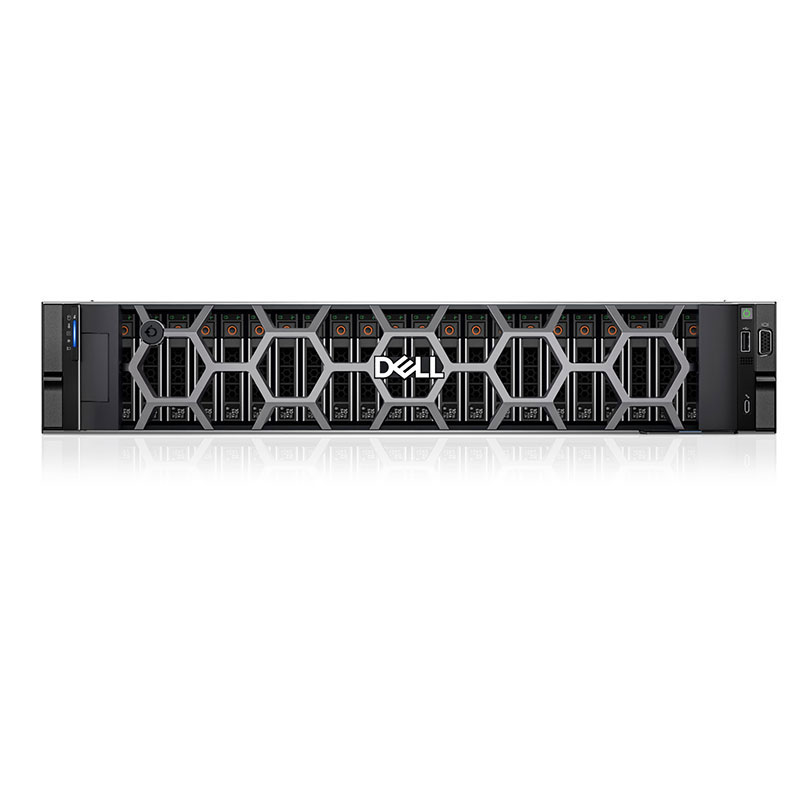
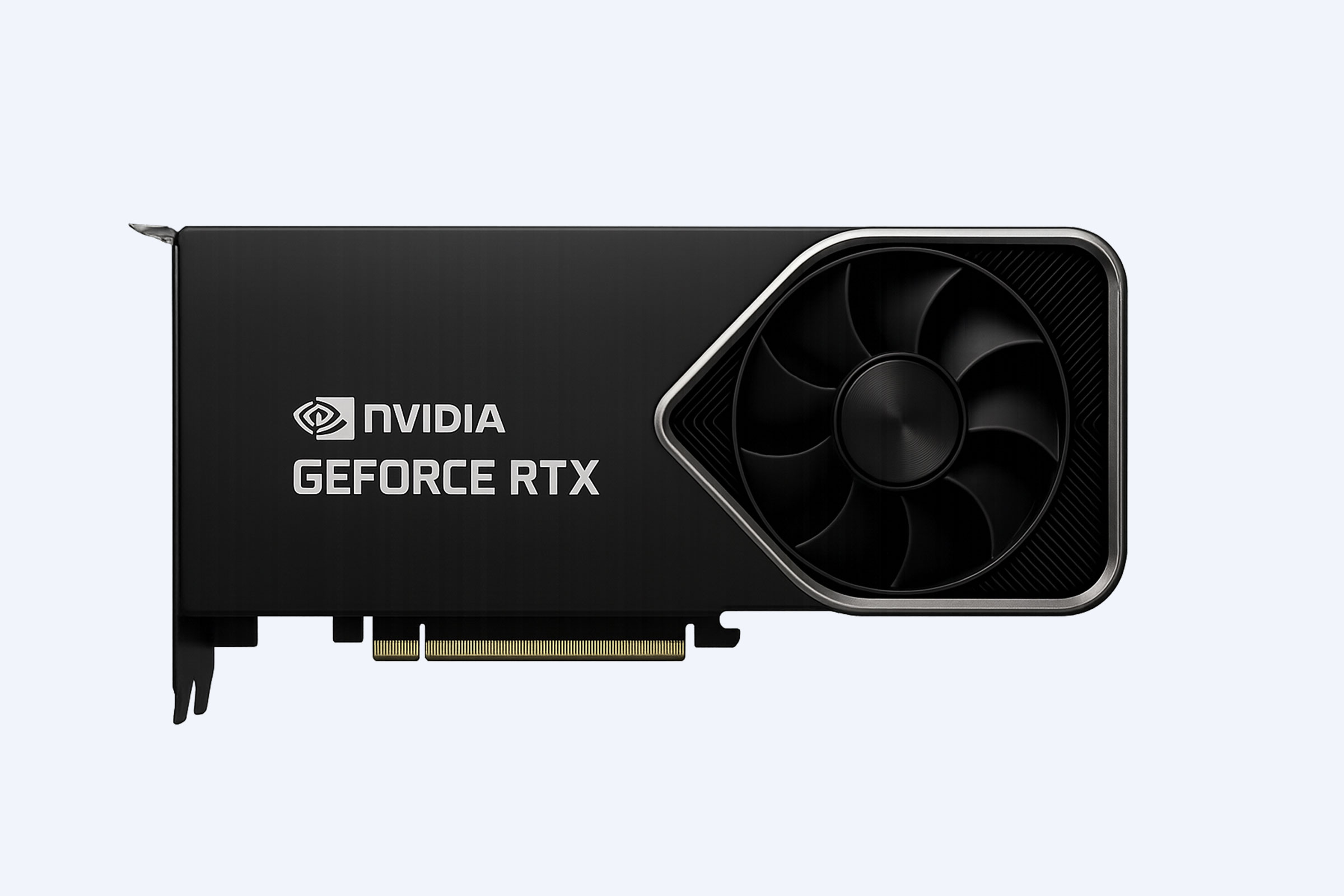
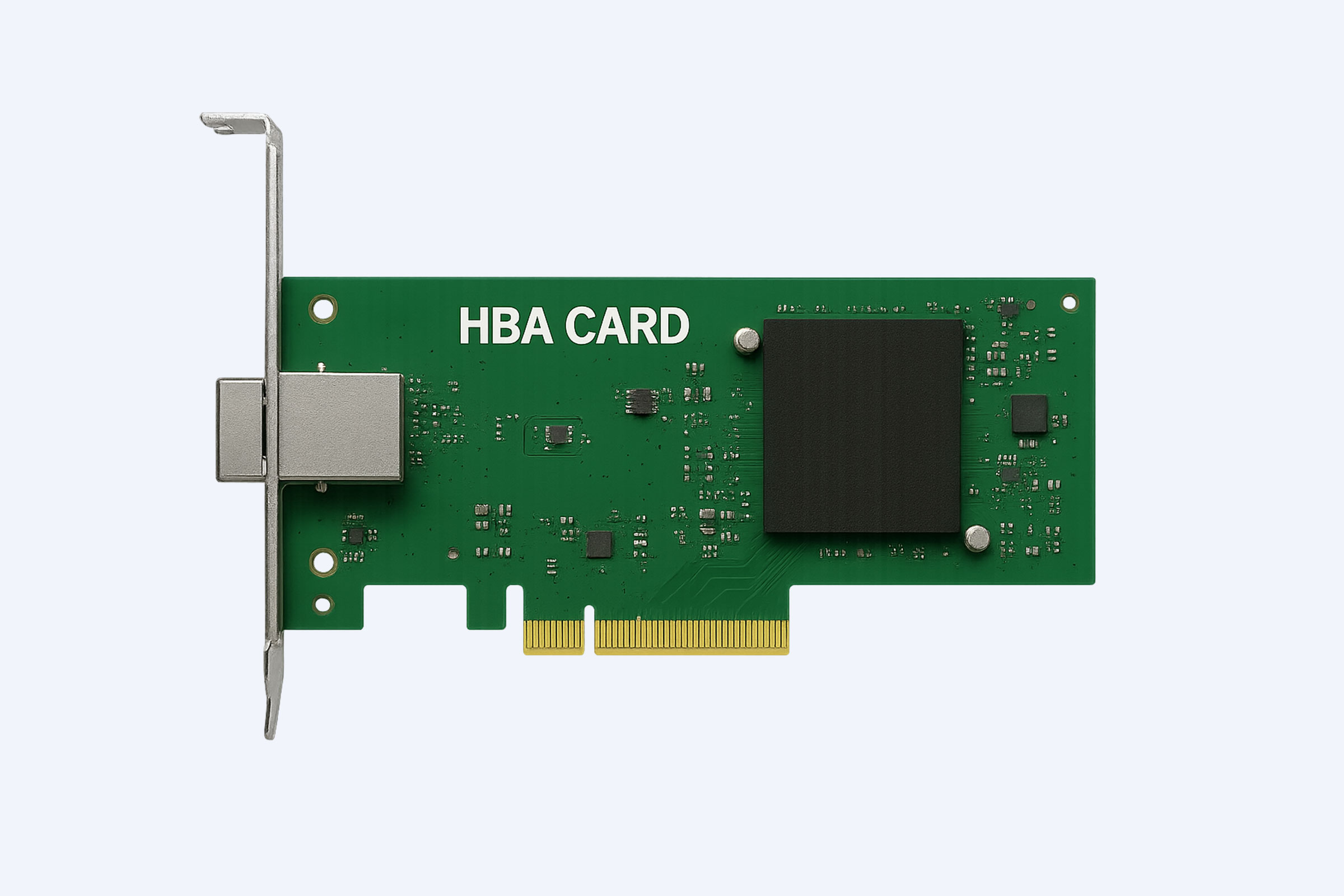
A vGPU server for CAD requires a compatible server platform, professional-grade GPUs with vGPU licensing, sufficient CPU cores and RAM, high-speed storage, and robust networking. The server must be certified for the chosen hypervisor and vGPU software to ensure stability and performance for demanding3D applications.
| Component | Minimum Specification for Medium Workload | Recommended Specification for Heavy Workload | Key Considerations & Rationale |
|---|---|---|---|
| GPU (NVIDIA) | NVIDIA RTX A4500 (20GB) or A40 (48GB) | NVIDIA A10040GB/80GB or multiple A40/A6000 | Professional GPUs offer certified drivers, ECC memory, and vGPU software support. Memory per vGPU is critical for large assemblies. |
| CPU | Dual Intel Xeon Silver4314 (16 cores/32 threads) or AMD EPYC7313 (16 cores/32 threads) | Dual Intel Xeon Gold6348 (28 cores/56 threads) or AMD EPYC7713 (64 cores/128 threads) | High core count to handle multiple VMs and offload CPU tasks from the GPU. PCIe lanes are vital for GPU bandwidth. |
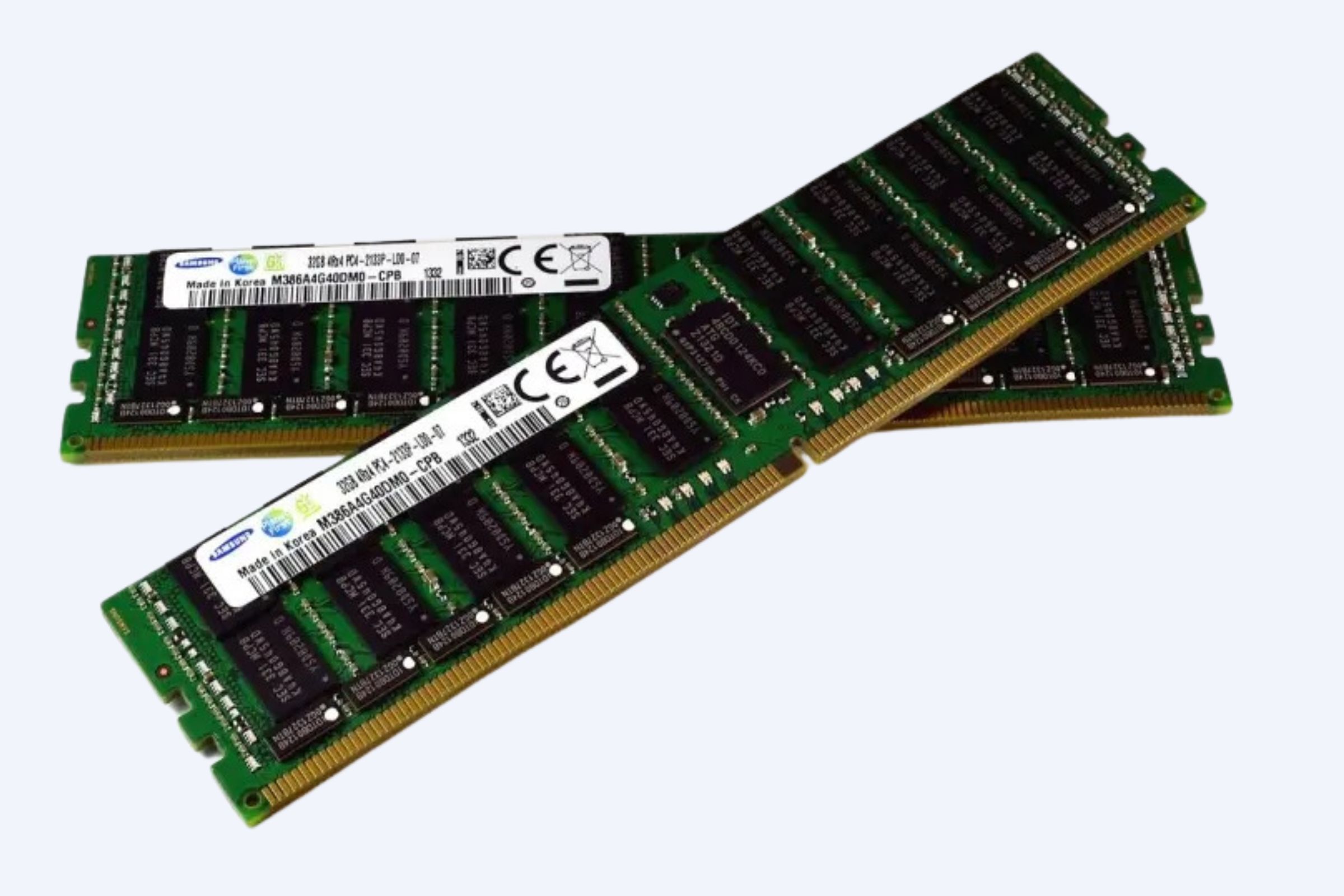
| System RAM | 256 GB DDR4/DDR5 ECC RDIMMs | 512 GB -1 TB DDR4/DDR5 ECC RDIMMs | Allocate32-64 GB per VM for CAD, plus overhead for the hypervisor. ECC prevents data corruption in critical work. |
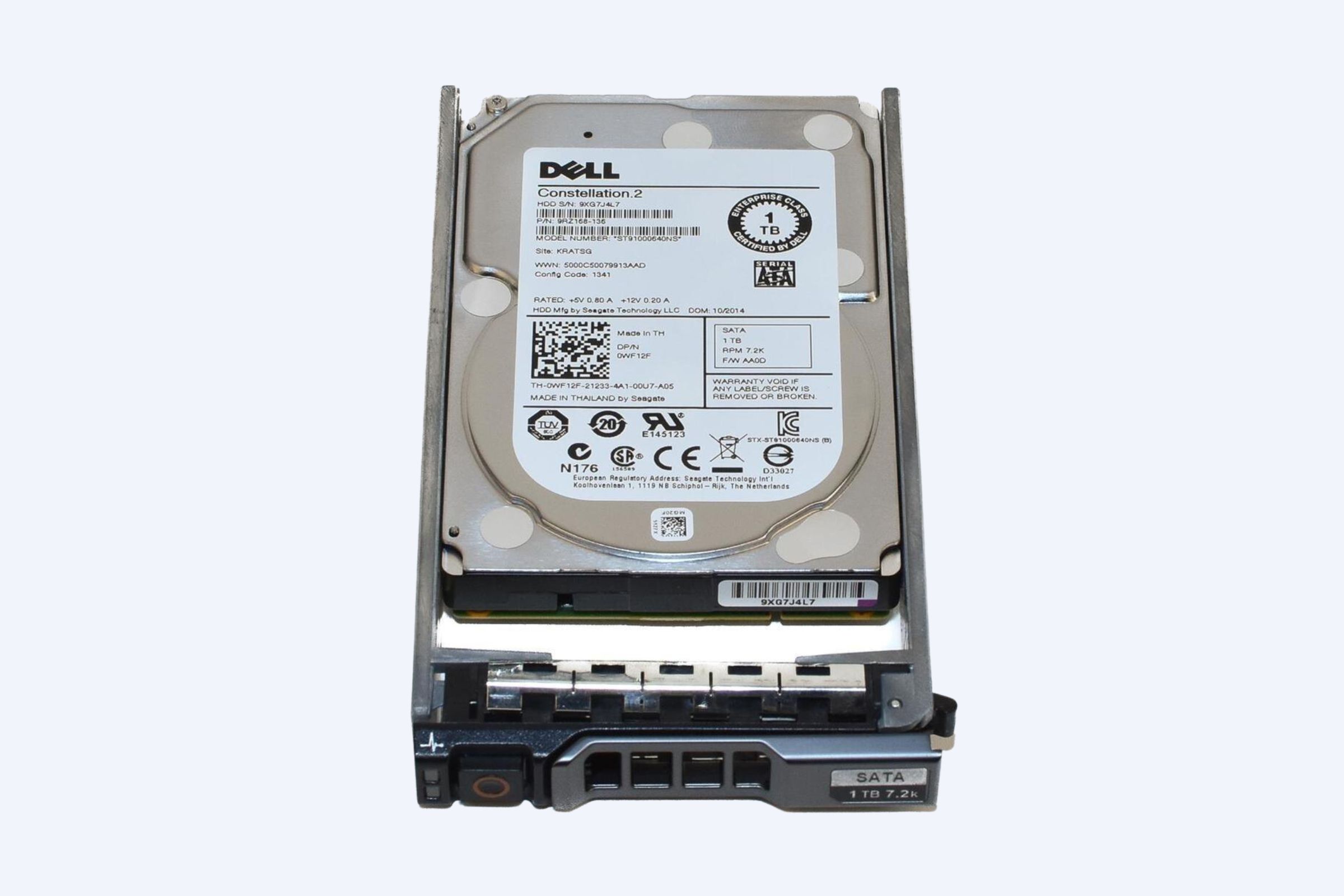
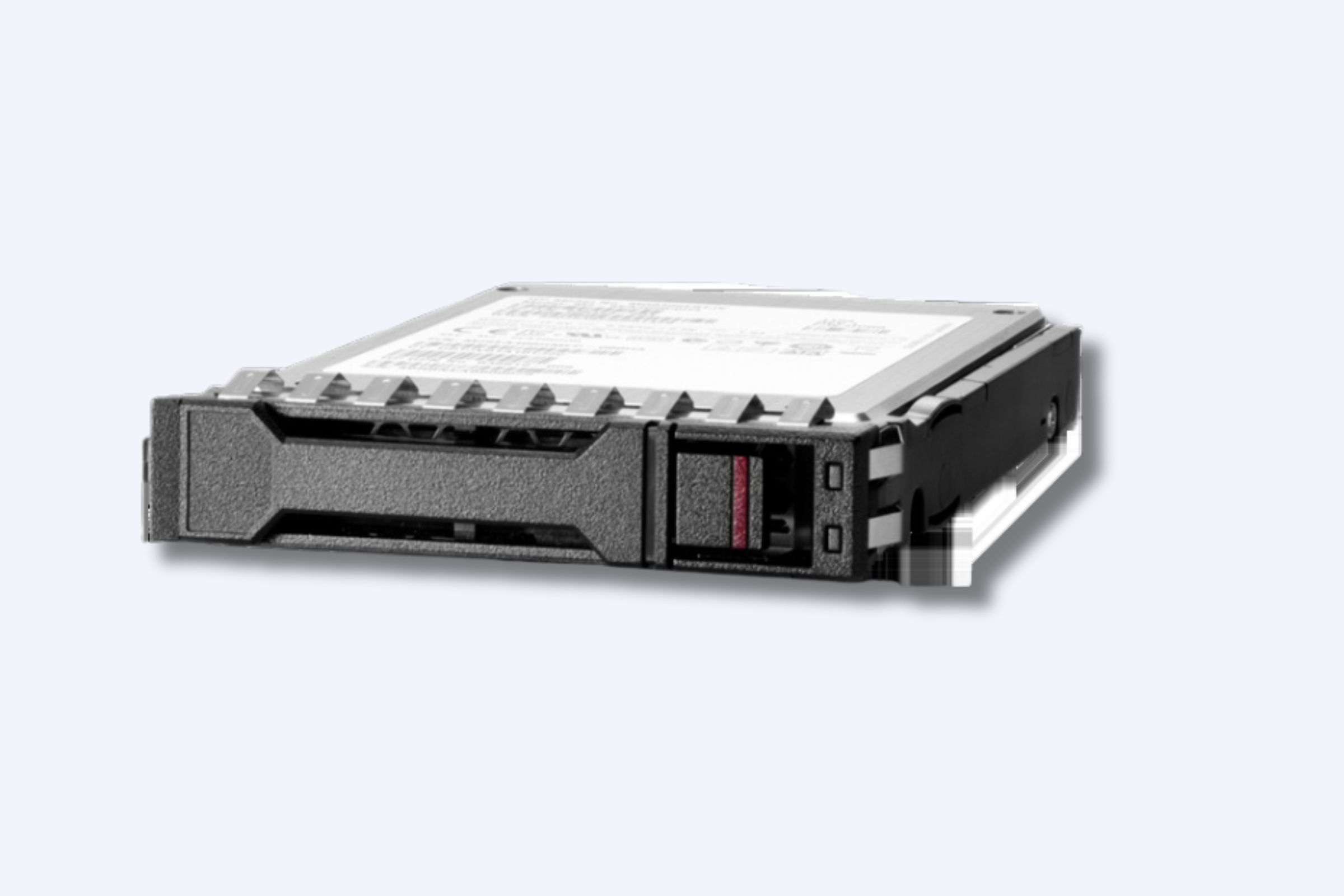
| Storage | Dual1.92 TB NVMe SSDs in RAID1 for OS/VMs | All-NVMe array (e.g.,4×3.84 TB) in RAID10 or dedicated all-flash SAN/NAS | Low latency and high IOPS are essential for loading large project files and asset libraries quickly. |
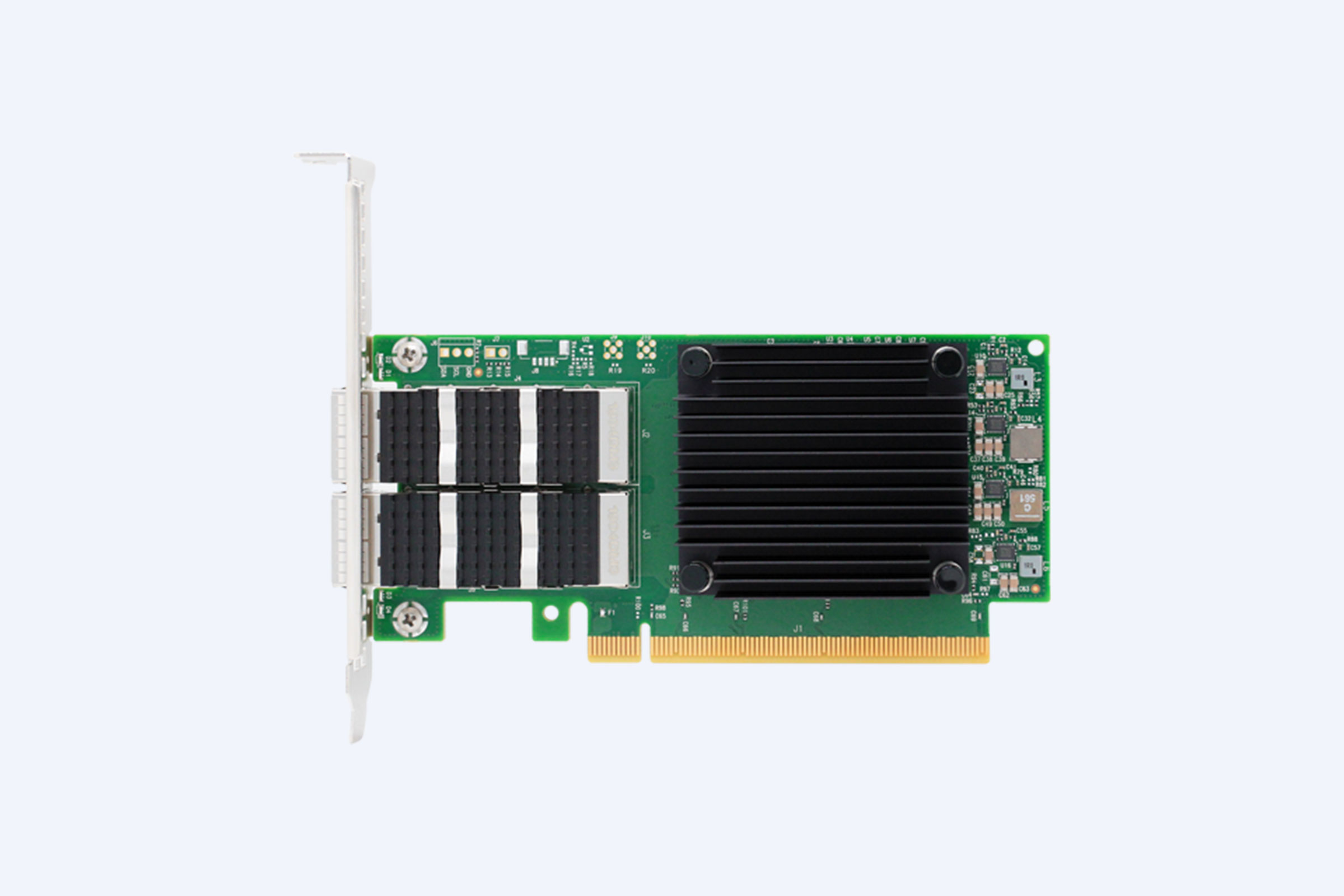
| Networking | Dual-port10 GbE NIC | Dual-port25 GbE or100 GbE NIC | High bandwidth reduces latency for remote display protocols like PCoIP or Blast Extreme. Dedicated management network is advised. |
Which remote display protocols are best for a3D rendering virtual workstation?
The best protocols for3D rendering balance visual fidelity, latency, and bandwidth. NVIDIA RTX Virtual Workstation (vWS) combined with Teradici PCoIP or Citrix HDX3D Pro is industry-standard. VMware Blast Extreme and Microsoft RemoteFX also offer viable options, with performance heavily dependent on GPU encoding and network quality.
Selecting a remote display protocol is a critical decision that directly impacts user experience. These protocols are responsible for capturing the graphical output from the virtual GPU, compressing it, transmitting it over the network, and decoding it on the user’s thin client or laptop. For professional3D workloads, the protocol must support high color depth, high resolutions like4K, and smooth frame rates, all while efficiently handling the complex, changing pixels of a rotating3D model. NVIDIA’s approach often integrates its NVENC hardware encoder on the GPU, which offloads the compression task to dedicated silicon, drastically reducing CPU overhead and latency. A real-world example is an automotive designer using SolidWorks remotely; the PCoIP protocol, with its lossless compression mode for critical areas of the screen, ensures that fine details on a gear assembly are rendered perfectly, while the background UI can use more aggressive compression to save bandwidth. However, does a protocol’s performance in a static office environment translate to a user working from home over a variable internet connection? Furthermore, how do you balance the need for visual perfection with the practical constraints of available network infrastructure? Moving forward from protocol selection, the configuration of the virtual workstation image itself is equally important for application performance.
How do you configure a virtual workstation for optimal CAD application performance?
Optimal configuration involves selecting the right vGPU profile, allocating sufficient vCPU and RAM, installing certified graphics drivers, and tuning the guest OS. Disabling unnecessary visual effects, configuring virtual disks for performance, and ensuring proper integration with the remote display protocol are also crucial steps for a responsive CAD user experience.
Configuring a virtual workstation is a nuanced process that goes beyond simply assigning resources. The first step is choosing the appropriate vGPU profile from the NVIDIA vGPU software, which locks in the amount of GPU memory and number of display heads. For a demanding application like Autodesk Revit or Siemens NX, a profile with at least8GB of dedicated framebuffer is a starting point, with16GB or more recommended for large, complex models. Within the VM, you must pair this with an adequate number of virtual CPUs; a good rule is to start with8 vCPUs and scale based on application monitoring. The guest operating system, typically Windows10/11 Enterprise, requires tuning: disable transparency effects and animations, set the power plan to High Performance, and ensure the storage is configured as a fixed-size VMDK on a fast datastore. Crucially, you must install the NVIDIA GRID or vWS guest driver, which is specifically optimized for virtual environments and enables features like multi-monitor support and GPU acceleration for video codecs used by the remote protocol. Consider this akin to tuning a race car; you can have a powerful engine (the vGPU), but you also need the right suspension (vCPUs), fuel system (RAM), and aerodynamics (OS tuning) to win the race. But what happens when a user’s project outgrows the initial profile? And how do you maintain consistency across dozens of identical virtual workstations for a large team? These configuration challenges lead directly to considerations about the overarching management and licensing framework.
What are the primary considerations for vGPU software licensing and management?
vGPU software requires separate licensing from NVIDIA, typically sold on a concurrent user basis. Management involves using tools like NVIDIA vGPU Software License Server and integrating with existing VM orchestration platforms. Planning must account for license pooling, compliance, and the different license tiers (e.g., Virtual Apps vs. Virtual Workstations) that unlock specific features.
| License Tier (NVIDIA) | Target Use Case | Key Features Enabled | Typical User Profile |
|---|---|---|---|
| Virtual Apps (vApps) | Task workers using2D/Office apps and lightweight3D | Basic vGPU acceleration, display head support, NVIDIA GRID driver | Data entry, call center, basic CAD viewing |
| Virtual PC (vPC) | Knowledge workers needing multi-monitor and media support | Enhanced display support, higher resolution, GPU acceleration for video | Financial analyst, software developer, light graphics |
| Virtual Workstation (vWS) | Power users running professional3D and compute apps | All vPC features plus support for professional APIs (OpenGL, DirectX, CUDA), ECC memory, and largest vGPU profiles | CAD designer,3D animator, video editor, data scientist |
| AI Enterprise | Data science and AI development workloads | Includes vWS features plus specific optimizations and support for AI software stack | Machine learning engineer, researcher |
Does implementing a vGPU solution improve security for remote design teams?
Yes, vGPU solutions significantly enhance security by centralizing data and intellectual property in the data center. Design files never leave the secure server environment, reducing risks from endpoint theft or loss. Access is controlled via secure protocols and can be integrated with multi-factor authentication and comprehensive audit logging.
Security is a paramount advantage of the vGPU model, especially for industries where design IP is highly valuable. In a traditional setup, a powerful workstation sits under a designer’s desk, holding the only copy of critical project files. This creates vulnerability to physical theft, unauthorized local copying, or malware on the endpoint. With a vGPU solution, the actual data resides on secure, access-controlled storage within the data center. The remote user’s device only receives encrypted pixels of the display output. This means if a laptop is stolen, the thief gains no access to the CAD files or software, as authentication is required to even launch the virtual desktop session. Furthermore, IT can enforce consistent security policies across all virtual workstations, such as disabling USB redirection for storage devices, ensuring all data saving occurs on network shares, and implementing screen capture prevention. The entire session can be monitored and logged for compliance. Imagine it as a high-security art gallery; the priceless originals (the design files) are kept in a vault (the data center), and visitors (users) can only view perfect replicas (the remote display) under strict supervision without ever touching the originals. But does this centralized model introduce a single point of failure? And how do you ensure the security chain isn’t broken by weak user passwords or unpatched hypervisor software? Addressing these concerns is part of a holistic security strategy that complements the technological foundation.
Expert Views
“The shift to GPU-accelerated virtualization is not just an IT consolidation project; it’s a strategic enabler for business agility. In my experience deploying these systems for engineering firms, the most overlooked aspect is the human factor. Success hinges on matching the technical vGPU profile not just to the software’s requirements, but to the individual user’s workflow. A simulation engineer needs a different profile than a conceptual modeler. Furthermore, the network is the new backplane. You can invest in the finest servers and GPUs, but if your network lacks the low latency and consistent bandwidth, user satisfaction will plummet. A phased pilot program, starting with a small group of power users, is invaluable for gathering real-world performance data and adjusting configurations before a full-scale rollout. This iterative approach saves significant cost and avoids disruption.”
Why Choose WECENT
Selecting the right partner for your vGPU infrastructure is as critical as selecting the hardware itself. WECENT brings over eight years of specialized experience in enterprise server solutions, with a deep understanding of the nuanced requirements for graphics virtualization. Our expertise is not merely in supplying original, certified hardware from leading brands like Dell, HPE, and NVIDIA, but in architecting complete solutions. We recognize that a vGPU deployment intersects server, storage, networking, and software licensing. Our consultants work to understand your specific CAD applications, user count, and performance targets to recommend a balanced configuration, avoiding both under-provisioning that frustrates users and over-provisioning that wastes budget. As an authorized agent, we ensure all components are genuine and backed by full manufacturer warranties, providing a reliable foundation for your mission-critical design environment. Our focus is on delivering the educational guidance and technical clarity needed to make informed decisions for your long-term IT strategy.
How to Start
Beginning your vGPU journey requires a methodical, problem-focused approach. First, clearly define the business problem: is it enabling remote work, securing IP, consolidating hardware, or accelerating onboarding? Next, conduct an application inventory. Document the specific CAD, rendering, and simulation software your teams use, along with their official GPU and driver requirements. Engage a pilot group of users from different roles to establish performance baselines on their current physical workstations. Third, design a small-scale proof-of-concept (PoC) environment. This should include a single qualified server, such as a Dell PowerEdge R760 or HPE ProLiant DL380, equipped with a professional NVIDIA GPU like the A40 or A100, and the necessary vGPU software licenses. The goal of the PoC is to validate performance, user experience, and management workflows in your own environment before committing to a broader deployment. Finally, based on the PoC results, develop a detailed rollout and scaling plan that includes user training, updated IT support procedures, and a lifecycle management strategy for the new virtual infrastructure.
FAQs
No, consumer GeForce GPUs are not supported by NVIDIA’s official vGPU software for commercial use. Professional CAD applications require certified drivers for stability and performance, which are only available with NVIDIA’s data center (e.g., A-Series, H-Series) and professional visualization (e.g., RTX A-Series) GPUs. These also offer critical features like ECC memory and vGPU licensing.
With a well-designed infrastructure, users on a local area network (LAN) can experience latency under20 milliseconds, which is often imperceptible. Over wide area networks (WAN), latency depends on internet quality but can be managed effectively with30-50 ms being acceptable for many design tasks. The remote display protocol and GPU encoder play a huge role in minimizing perceived lag.
The number depends entirely on the GPU model, the vGPU profile size, and the application demands. A high-end GPU like the NVIDIA A10080GB could potentially host10+ users on lighter profiles, while for demanding CAD, a single A40 might be split into just2-4 high-performance vGPUs. Careful capacity planning and profiling are essential to determine the right density.
Yes, NVIDIA vGPU software supports multiple virtual display heads. A vGPU profile can be configured to support two, four, or even more virtual displays. The remote display protocol (like PCoIP or HDX) then transmits these separate display streams to the user’s physical monitors, providing a seamless multi-monitor experience identical to a local workstation.
NVIDIA vGPU software includes a grace period, typically30 days, to allow for license server outages. Existing VM sessions will continue to run during this period. However, new VMs will not be able to power on if they cannot check out a license. It is therefore critical to implement high availability for the license server, such as running it in a VM that can be failed over.
Implementing a vGPU solution for remote CAD and3D rendering is a transformative step that centralizes resources, enhances security, and enables geographic flexibility for design teams. The key takeaways are to start with a clear understanding of your applications and users, invest in the right certified professional-grade hardware and software, and never underestimate the importance of the network. Actionable advice includes beginning with a controlled pilot program to gather real data, working with experienced partners who can navigate the complexities of licensing and configuration, and planning for management and scaling from day one. By treating the virtual workstation as a holistic system encompassing server, GPU, storage, network, and software, organizations can build a powerful, agile, and secure platform that empowers their creative and engineering talent from anywhere.