






Identifying whether a1GbE network port or the underlying RAID array is your NAS bottleneck requires systematic testing. You must isolate and measure the performance of each component, comparing the theoretical maximums of your network interface against the real-world read/write speeds of your storage pool under load. This diagnostic process reveals the true limiting factor in your data transfer pipeline.
How can I test if my1GbE network is the bottleneck?
To test for a network bottleneck, you need to measure the actual throughput between your client machine and the NAS. This involves using tools like iPerf3 for raw TCP bandwidth and performing large file copy tests while monitoring network utilization on both ends. Saturation consistently near125 MB/s indicates the network link is the primary constraint.
Begin by establishing a baseline with a tool like iPerf3, which measures maximum TCP bandwidth by sending data streams between your computer and the NAS. A result consistently near940 Mbps, which is the practical limit for a1GbE connection after accounting for protocol overhead, confirms your network hardware is functioning correctly. Next, perform a real-world test by transferring a single, very large multi-gigabyte file from a fast local SSD on your PC to the NAS and monitor the transfer speed in your operating system’s task manager or resource monitor. If the speed caps at approximately112-125 MB/s and the network utilization on both the client and NAS shows100%, you have definitively identified the network as the bottleneck. Think of it like a highway; even if your storage drives are sports cars, they all must merge into a single-lane tunnel represented by the1GbE link. For more accurate results, ensure no other devices are heavily using the network during the test and that you are connected via a wired Ethernet cable, as Wi-Fi introduces significant and variable latency. Would your workflow benefit from faster file transfers? Could a2.5GbE or10GbE upgrade be the next logical step? After isolating the network, the next phase is to examine the storage subsystem directly, which requires accessing the NAS locally to bypass the network entirely.
What tools can I use to measure my RAID array’s true speed?
Measuring your RAID array’s true speed requires bypassing the network and using benchmarking tools directly on the NAS or via a direct-attached console. Utilities like `dd` on Linux-based systems, `fio` for flexible I/O testing, or the graphical performance monitors within your NAS’s operating system (like QNAP’s or Synology’s resource monitors) provide insights into raw sequential and random read/write performance.
To get an accurate picture, you must eliminate the network variable. For many consumer and prosumer NAS units, this means accessing the device’s shell or command line interface directly, often via SSH. Once connected, you can use the `dd` command to perform a simple sequential write and read test on a file within the storage volume, though this method has limitations. A more comprehensive tool is `fio` (Flexible I/O Tester), which allows you to simulate various workloads including random reads, random writes, and mixed loads with different queue depths. This is crucial because RAID arrays, especially those using SMR drives or certain RAID levels like RAID5 or6, can have vastly different performance for sequential versus random operations. For instance, a RAID5 array of four HDDs might deliver excellent sequential read speeds of over400 MB/s but suffer with random write speeds below50 MB/s due to the parity calculation overhead. On the other hand, many NAS OSes have built-in performance monitoring that logs drive activity; reviewing these logs during a heavy internal task like data scrubbing or volume expansion can reveal the sustained throughput of the array. It’s akin to testing a car’s engine on a dynamometer instead of just driving it on the road; you isolate the power source from external factors. How does your array’s measured speed compare to the sum of its individual drive specifications? Are you seeing the performance uplift you expected from your chosen RAID configuration? Consequently, interpreting these results in the context of your RAID level and drive types is the key to understanding your storage potential.
Which specifications should I compare between network and drive speeds?
You must compare the effective throughput of each component. For the network, the key metric is the maximum data rate of the Ethernet port (e.g.,1 Gb/s = ~125 MB/s). For the drive array, you need the sustained sequential read and write speeds of the entire RAID volume, which depends on the drive type (HDD/SSD), quantity, and RAID level. The lower spec is your bottleneck.
| Component | Key Performance Metric | Typical Real-World Speed Range | Factors Influencing Performance |
|---|---|---|---|
| 1 Gigabit Ethernet (1GbE) Port | Maximum TCP Throughput | 112 -125 Megabytes per second (MB/s) | Network protocol overhead, switch quality, cable quality, and NIC driver efficiency. |
| Single SATA HDD (7200 RPM) | Sustained Sequential Read/Write | 160 -220 MB/s | Drive areal density, cache size, and fragmentation level of the data being accessed. |
| RAID5 Array (4x HDD) | Sustained Sequential Write | 300 -450 MB/s | Write penalty for parity calculation, controller CPU power, and stripe size configuration. |
| RAID0 Array (2x SATA SSD) | Sustained Sequential Read | 1000 -1100 MB/s | Interface limit of SATA III (6 Gb/s), drive controller quality, and type of NAND flash. |
| Single NVMe SSD (Gen3) | Sustained Sequential Read | 3000 -3500 MB/s | PCIe lane configuration, drive controller, NAND type, and thermal throttling under sustained load. |
Does my RAID configuration affect which bottleneck appears first?
Absolutely. Your RAID configuration dramatically influences storage pool performance. RAID0 stripes data for high speed but offers no redundancy, often exceeding1GbE limits. RAID5 or6 provides parity-based protection but introduces a write penalty, which can cause array write speeds to fall below the125 MB/s network ceiling, making the drives the bottleneck even on a1GbE network.
The choice of RAID level is a fundamental architectural decision that predetermines performance characteristics. RAID0, by striping data across drives without parity, offers near-linear scaling of read and write speeds; a two-drive SSD RAID0 can easily saturate a1GbE network and would be bottlenecked by it. Conversely, RAID5 and RAID6 are popular for balancing capacity and redundancy but incur a significant write penalty. For every write operation, the system must read the old data and parity, compute new parity, and then write both the new data and new parity. This process, especially on arrays built with traditional hard drives, can cause write speeds to be a fraction of the aggregate read speed. Therefore, a four-drive HDD RAID5 array might read at400 MB/s but only write at120 MB/s, which is below the1GbE network limit. In this scenario, the array becomes the bottleneck for write operations even before the network is fully utilized. Similarly, RAID1 (mirroring) only writes as fast as the slowest drive in the mirror. It’s like comparing a single-lane road that splits into two parallel lanes (RAID0) versus a single lane that requires a toll booth for security checks (RAID5 write). Does your primary workload involve more reading or writing of large files? Have you considered a tiered storage approach using SSD caching to mitigate the write penalty of parity RAID? Ultimately, understanding these trade-offs is essential for planning an upgrade path that addresses the correct constraint.
What are the signs my bottleneck is actually the NAS CPU or RAM?
Signs of a CPU or RAM bottleneck include high processor utilization during file transfers, sluggish response from the NAS web interface during transfers, slow file indexing or thumbnail generation, and poor performance when enabling encryption or running multiple services simultaneously. These symptoms persist even when network and drive speeds are not maxed out.
While network and drives are the usual suspects, the NAS’s central processing unit and memory are the conductors of the orchestra. If they are underpowered, the entire system slows down. During file transfers, log into your NAS’s administration panel and monitor the real-time CPU and RAM usage. If you see CPU usage pegged at95-100% while network utilization remains well below1GbE capacity and disk activity seems low, the processor is likely struggling to manage the file system, network stack, or any running applications like media servers or cloud sync. This is common when using older or entry-level NAS models with ARM-based CPUs, especially when tasks like on-the-fly video transcoding, active antivirus scanning, or data deduplication are enabled. Similarly, insufficient RAM can force the system to use slower swap space on the drives, introducing massive latency. For example, a NAS with2GB of RAM trying to manage a large SMB transfer, a Docker container, and a photo backup sync will often become unresponsive. It’s like having a brilliant librarian (fast drives) in a huge library (your storage) but only one very slow assistant (CPU) to fetch and process every book request. Are your performance issues worse when multiple services are running? Does a simple reboot temporarily improve transfer rates? Therefore, a holistic view of all system resources is necessary for accurate troubleshooting.
How do I interpret benchmark results to plan an upgrade?
Interpret benchmarks by identifying the consistent ceiling in your tests. If network tools max at125 MB/s but local array benchmarks show300+ MB/s, upgrade the network first. If array speeds are below125 MB/s, focus on storage—consider faster drives, a different RAID level, or adding an SSD cache. If CPU is saturated, a more powerful NAS unit is needed.
| Bottleneck Identified | Upgrade Path Options | Expected Performance Improvement | Considerations & Cost Factor |
|---|---|---|---|
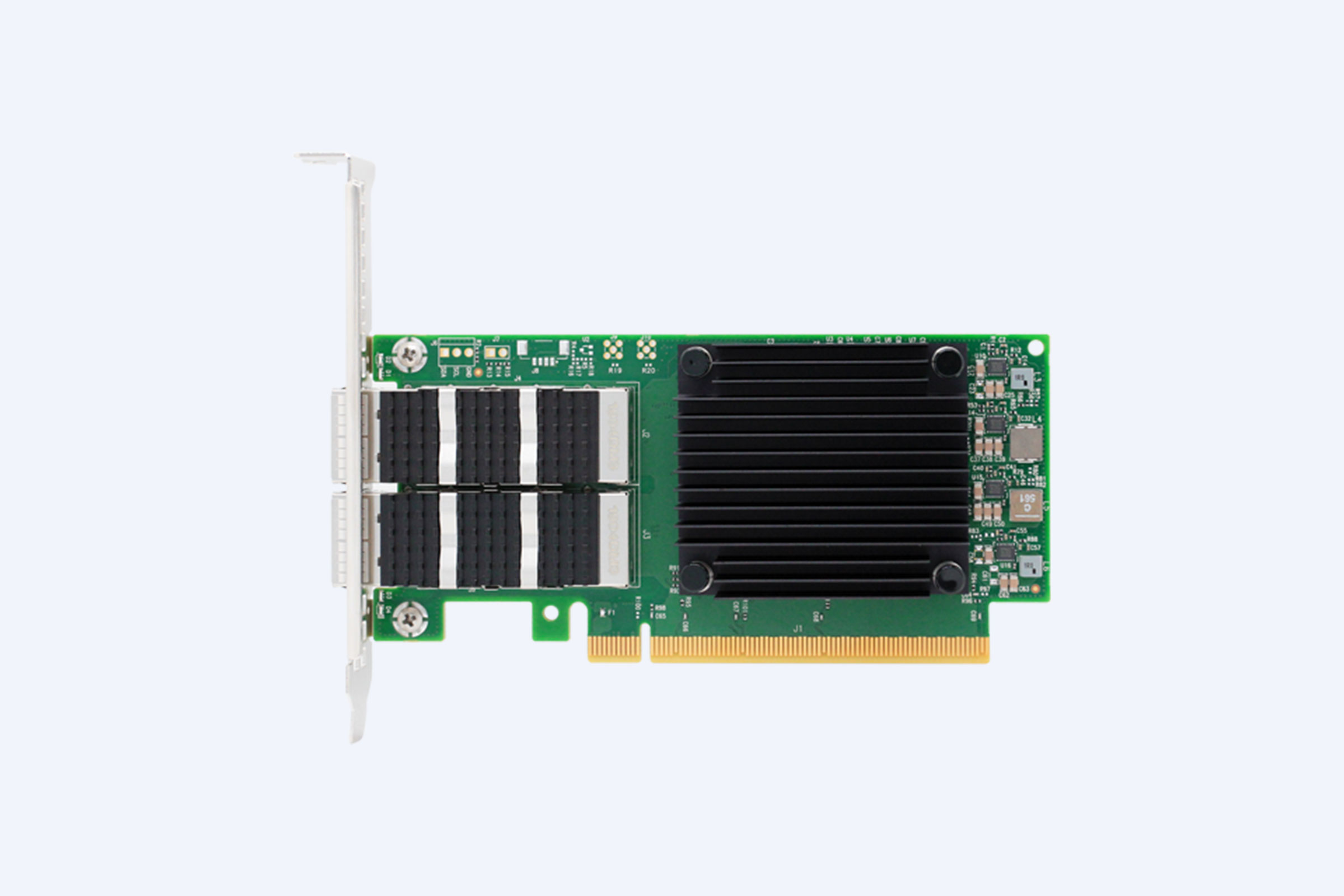
| 1GbE Network | Upgrade NAS & client to2.5GbE/10GbE; add compatible switch. | Transfer speeds increase to250-300 MB/s (2.5GbE) or over1000 MB/s (10GbE). | Requires new NICs, cabling (Cat6a for10GbE), and switch. A cost-effective first step is often a direct2.5GbE connection between PC and NAS. |
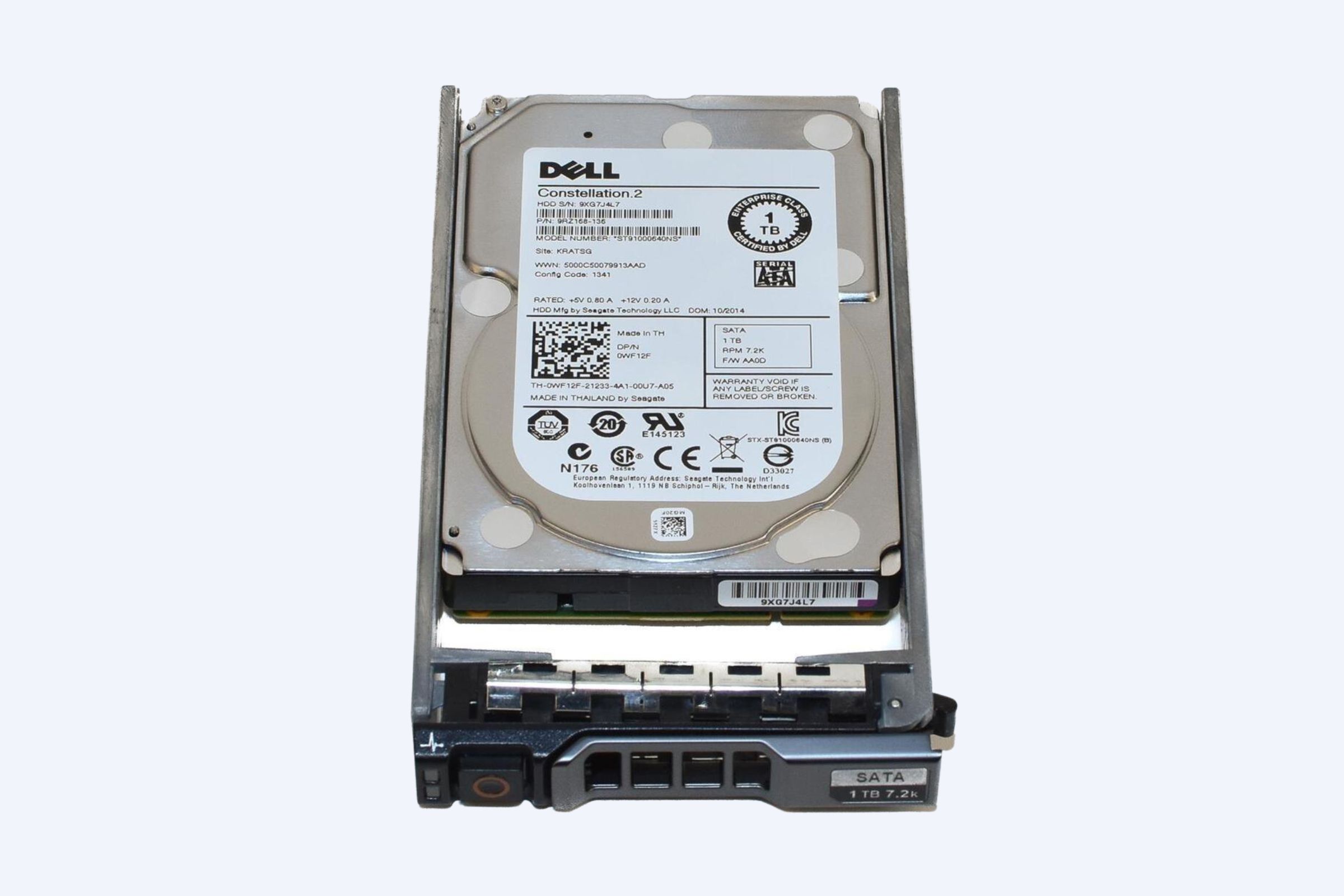
| HDD-based RAID Array | Replace HDDs with higher-RPM or SATA SSDs; add SSD read/write cache; change RAID level (e.g., RAID10). | Massively improved random I/O and latency; sequential speeds can exceed SATA III limits (550 MB/s). | SSDs have higher cost per TB. SSD caching benefits specific workloads. RAID10 offers speed but reduces usable capacity. |
| NAS CPU/RAM | Upgrade to a more powerful NAS model with a higher-core-count CPU and support for more RAM. | Improved multi-tasking, faster encryption, smoother app performance, and ability to handle more concurrent connections. | This is often the most expensive path, involving a full hardware replacement. Ensure the new model supports your existing drives. |
| SATA III Interface Limit | Migrate to a NAS platform supporting NVMe storage pools or PCIe expansion cards for U.2 drives. | Break the550 MB/s SATA bottleneck, achieving multi-gigabyte per second storage speeds. | Requires a high-end NAS chassis and compatible NVMe drives. Ideal for video editing or large database workloads. |
Expert Views
In enterprise storage environments, the bottleneck is rarely a single static component but a shifting constraint based on workload. A systematic, data-driven approach is non-negotiable. You must profile your specific I/O patterns—sequential versus random, read versus write, large versus small blocks. A1GbE network is almost universally a bottleneck for any all-flash or hybrid array. However, blindly upgrading to10GbE won’t help if the underlying RAID5 array on SATA HDDs can’t push beyond150 MB/s on writes. The key is to measure from the client perspective, then work backwards through the storage stack: network, filesystem, volume manager, and finally the physical disks. Tools that provide latency metrics at each layer are more valuable than pure throughput numbers, as latency is the true enemy of user experience. Planning an upgrade should always start with quantifying the business impact of the current slowdown against the cost of potential solutions.
Why Choose WECENT
Navigating NAS bottlenecks requires not just diagnosis but access to the right components for a solution. WECENT brings expertise from deploying enterprise server and storage solutions into the analysis. Our experience with high-performance configurations, from multi-gig networking cards to NVMe-all-flash arrays, provides a practical perspective on realistic upgrade paths. We understand that a bottleneck isn’t just a spec sheet problem; it’s a workflow disruption. The guidance we offer is rooted in real-world integration challenges, helping you avoid the common pitfall of over-investing in one area while neglecting the true constraint. By partnering with leading global brands, WECENT can provide authentic, warranty-backed hardware, whether you need a simple2.5GbE PCIe card, a batch of enterprise SAS drives, or a consultation on a full-scale storage refresh. This ensures your investment directly targets and eliminates the performance limitation you’ve identified.
How to Start
Begin by isolating the problem with a simple large file transfer and monitor your network utilization. If it’s maxed out, your network is likely the primary bottleneck. Next, access your NAS’s local resource monitor to check CPU, RAM, and disk activity during the transfer. If the network isn’t saturated but the disks are slow or the CPU is at100%, the issue lies deeper. Run a local benchmark on the NAS storage pool using built-in tools or command-line utilities like `fio` to get raw speed numbers. Compare these numbers to your network’s maximum throughput. Document your typical workload: are you mostly reading large video files, writing small database transactions, or a mix? This profile will guide your upgrade decision. Finally, consult the upgrade path table to match your diagnosed bottleneck with potential hardware solutions, ensuring compatibility with your existing system.
FAQs
Yes, a faulty or low-quality Ethernet cable can cause severe performance degradation through packet loss and retransmissions. This can make transfers unstable and slow, often capping well below1GbE speeds. It’s a simple first check—always use at least Cat5e or Cat6 cables in good condition for gigabit connections.
Link aggregation (LACP) combines ports for increased bandwidth across multiple *simultaneous* connections from different clients, but it does not double the speed for a single transfer from one client. A single file copy from one computer will still be limited to the speed of one port (~125 MB/s).
Not always. An SSD read cache accelerates frequently accessed data but does not help with first-time reads or large sequential writes. A write cache can improve performance but requires power-loss protection to be safe. For workloads dominated by large, sequential files or entirely random writes, a full storage pool of SSDs may be more effective.
Older protocols like SMB1 are inefficient and slow. Ensure all devices are using SMB3 or later, which supports features like larger read/write commands and encryption offloading, significantly improving throughput and reducing CPU overhead, especially on the NAS device itself.
Effectively troubleshooting NAS bottlenecks is a methodical process of elimination that separates network constraints from storage limitations. The key takeaway is to always test components in isolation: measure the raw capability of your network link, then benchmark your drives directly on the NAS. Understanding the performance profile of your chosen RAID level is critical, as parity-based arrays often create a write bottleneck before the network is fully taxed. If your tests consistently hit the125 MB/s ceiling of a1GbE connection, a network upgrade to2.5GbE or10GbE is your most impactful move. If your local array tests show speeds below this threshold, focus on enhancing your storage with faster drives, an optimized RAID type, or SSD caching. Remember to monitor CPU and RAM usage, as an underpowered NAS unit can bottleneck everything. Start with the simple diagnostic steps, document your findings, and let the data guide your upgrade investments for a tangible improvement in your workflow efficiency.